

Go from idea to useful result
ZeroTwo is an AI agent that you communicate with in natural language:1
Start with a question, an idea, rough notes, a file, or a task you need to
complete.
2
Ask ZeroTwo to explain information, develop ideas, draft content, research a
topic, analyze materials, or create something new.
3
Add the context and tools it needs, such as files, web search, projects, or
plugins.
4
Review the result, correct the direction, and ask for changes. You don't need
a perfect first prompt or special commands.
Choose how you want to work
Use Chat for a question or back-and-forth. Turn on Work in the switcher when you want ZeroTwo to carry a larger task through to a reviewable result. Select ZeroCode when you want developer views or more technical detail, especially for software development.
Use Chat to ask questions, brainstorm, draft or revise text, summarize files,
compare options, or clarify a larger task. In ZeroCode, point to New chat, then
select Quick chat when that option is available.
All three are available on the web and in the desktop app. On the web, ZeroCode
works in a cloud clone of a GitHub-connected repository — see ZeroCode on the
web.
When you need a finished, reviewable result, switch to Work and describe
what it should include. See Get started with ZeroTwo
Work for example tasks, prompts, and best
practices.
What Work can do
Work can plan a task, gather context, use tools, and carry the work through to a result you can review.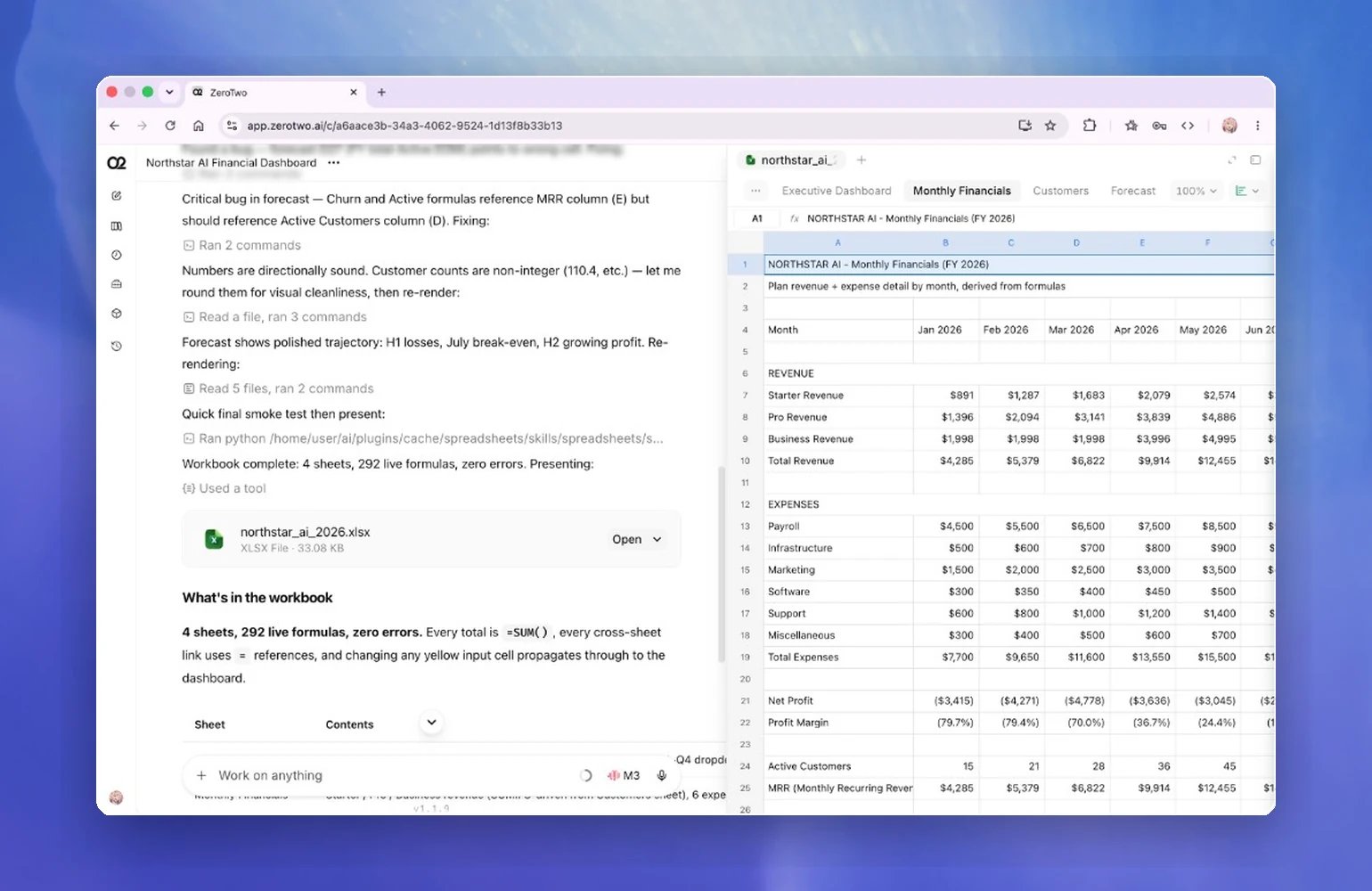
- Research and analyze information. Search the web, browse websites, compare sources, read files, analyze data, and summarize findings.
- Use your files and tools. Bring in uploaded files, projects, memories, ZeroTwo Library, and installed plugins. Plugins can provide connected information, reusable workflows, and supported actions.
- Create finished files. Draft and refine documents, presentations, spreadsheets, and PDF files. Review the result, ask for specific changes, and download the completed file.
- Create visual and interactive work. Generate or edit images, make interactive visualizations, and build or share websites and apps with Sites.
- Work across websites and apps. Use the browser to research and interact with websites. In the desktop app, use the Chrome extension, Computer Use, and appshots when those features are available.
- Run code and review technical work. Run code and shell commands, analyze data, inspect files, review code, and work with repositories your selected environment can access.
- Delegate and continue longer tasks. Split independent work across subagents, follow their progress, and keep long-running work active.
- Repeat useful workflows. Set up scheduled tasks for recurring work and use skills to reuse a workflow.
- Talk through a task. On supported plans in the desktop app, use ZeroTwo Voice to start work, check progress, or change direction.
Choose cloud or local work
Work is one mode on every surface. Where a task runs is the only thing that changes. On the web, Work runs in a managed cloud environment. In the desktop app, you may also be able to choose where a task runs:- Cloud: Run work in an isolated hosted environment. A task can keep going after you close the desktop app and continue from the web or mobile app. Cloud work can use uploaded files, connected tools, and approved websites.
- Work locally: Use files, apps, or the browser on your computer. Local work is available in the desktop app when enabled for your account or workspace.
Compare Work and ZeroCode on desktop
Work and ZeroCode have overlapping capabilities. If you prefer ZeroCode, you can keep using it for research, documents, presentations, and other knowledge work. When both are available to you, the desktop app changes the interface and how the agent presents its work.Detailed comparison
Detailed comparison
Talk to ZeroTwo naturally
Write as if you were explaining the request to a helpful colleague. State what you want to accomplish, add the details that change the answer, and describe the format you need. Your first prompt is only a starting point—you can add context or refine the result with follow-up messages.- “Make this shorter.”
- “Give me three different approaches.”
- “What assumptions are you making?”
- “Ask me questions before you continue.”
Bring the right context into ZeroTwo
Give ZeroTwo the information, tools, and instructions that matter to the task. You don’t need to provide everything—include the context that changes what a good result looks like.Keep related work in a project
Projects help you organize ZeroTwo around a topic, goal, or ongoing body of work. Keep related chats, files, and instructions in one project when the work will continue over time or depend on the same context. Learn more about projects.Attach files
You can upload or attach documents, presentations, spreadsheets, PDF files, images, and data exports. Use them when you want ZeroTwo to:- Summarize or compare them.
- Find patterns or inconsistencies.
- Extract, clean, or reorganize information.
- Use them as source material for a new file.
Connect tools with plugins
Plugins can connect ZeroTwo to the tools and information you use for work, such as Google Drive, SharePoint, Salesforce, or Gong. Use them when a task depends on information outside the chat, actions in another system, or a repeatable workflow.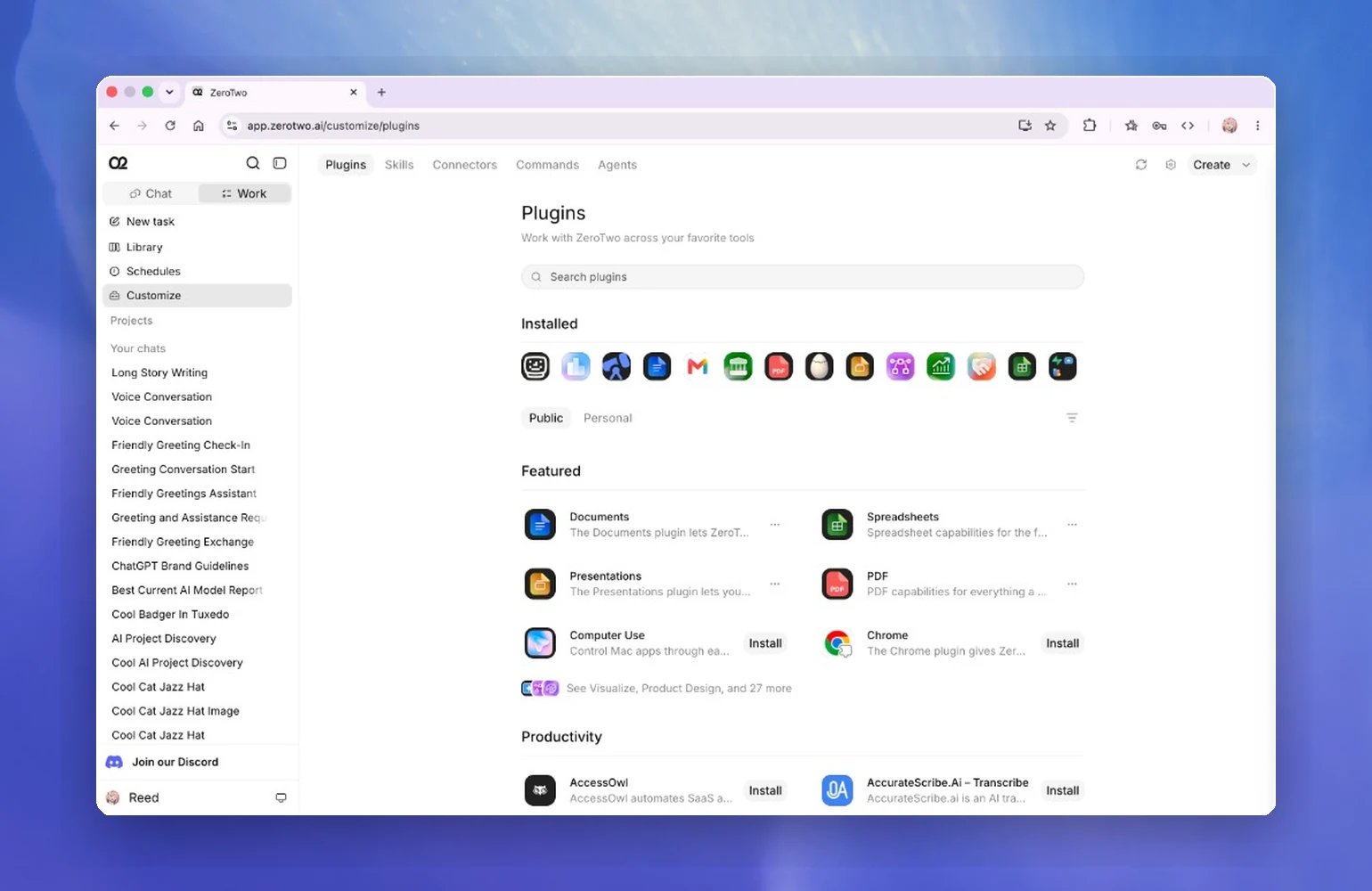
Make the result ready to use
Treat the first result as a draft you can inspect, challenge, and improve. A polished response can still be incomplete or wrong, so review the details that matter before you use or share it. Check the work:- Verify important numbers, names, dates, quotes, and claims.
- Open generated files and inspect every section, tab, slide, or page.
- Confirm that ZeroTwo used the correct and most current source material.
- Look for missing information and unsupported assumptions.
- Ask for focused revisions when the result misses the goal.
- “What sources did you use for this?”
- “Cite the source for each major claim.”
- “What assumptions did you make?”
- “What information were you unable to access?”
- “What would change your recommendation?”
- “Check this result against the original files.”