

Prompting overview
Prompting is how you tell ZeroTwo what you want to know, make, or change. A prompt can be a question, an instruction, or a goal. You don’t need technical syntax or a rigid formula. Start in your own words, review the response, and use follow-up messages to shape the result. A short prompt is often enough. For larger or more important tasks, include the parts that matter:- Goal: What should ZeroTwo do?
- Context: What information or sources will help?
- Output: What format, length, or level of detail do you need?
- Boundaries: What must stay unchanged? What should ZeroTwo avoid or check with you before it acts?
Describe the result you need
Start with the result, not a detailed list of steps. Include the audience or format when those details change what ZeroTwo should produce.Add useful context
Share the information that could change the result. Add only the sources that matter, and explain what ZeroTwo should take from each one.- Attach documents, spreadsheets, presentations, or PDF files when you want ZeroTwo to summarize, compare, transform, or create files for review.
- Add a screenshot, diagram, or other image input when the task depends on visual context. Point out the area that matters instead of relying on the image alone.
- Ask ZeroTwo to use web search when the answer depends on current information, and ask for sources when you need to check the result.
- Use a project when related chats should share files, sources, or a local folder.
Use connected sources
When ZeroTwo has access to connected sources, name where it should look and what it should find. You don’t need to describe every search it should run.Use plugins
Plugins give ZeroTwo and ZeroCode reusable instructions and connections to tools such as Google Drive, Gmail, Slack, and GitHub. Both products draw public plugins from the same universal directory. Ask for the result you need and let the active surface choose from the tools available to it. In ZeroTwo, type@
in the composer to choose a specific plugin.
Personalize ZeroTwo
Put preferences that should apply across chats in Settings > Personalization as custom instructions. Keep details that matter only to the current chat in the prompt.Set boundaries that prevent real problems
Boundaries are the few instructions ZeroTwo needs to avoid creating extra work or taking an action you didn’t intend. Add one when changing the wrong detail would make the result unusable, or when you want to review something before it affects other people.- Keep the approved dates and budget figures unchanged.
- Use only the supplied sources. Flag missing information instead of guessing.
- Keep recommendations within the stated budget.
- Prepare the message as a draft. Don’t send it.
Make the result ready to use
Tell ZeroTwo how you plan to use the result. This helps it choose the right length, level of detail, and organization.- Make this a one-page summary a director can scan before the meeting. Put the decision and next steps first.
- Turn these notes into a follow-up email with the decisions, owners, and due dates.
- Create a clear table of planned versus actual spending and highlight any difference over 10%.
Improve the result with follow-up messages
Your first prompt doesn’t need to be perfect. Review the result, then ask for the specific change you want.Steering and queuing
When ZeroCode is already working, you can send another message without waiting for the current run to finish:- Steer adds the message to the current run. Use it to change direction, add a missing detail, or share new information.
- Queue saves the message for the next run. Use it for a follow-up that should wait until the current work finishes.
Put the pieces together
For a project update that uses connected sources, a complete prompt might look like this:Use voice dictation
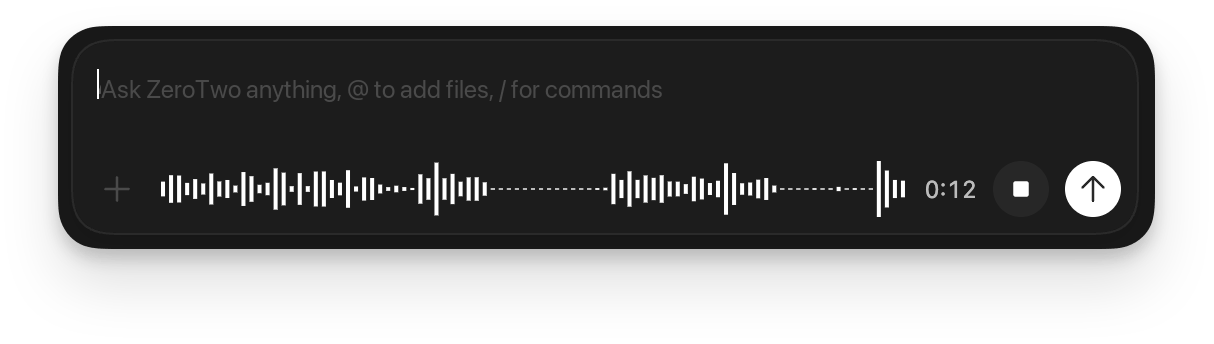
In the ZeroTwo desktop app, hold Ctrl+M while the composer is visible, then start talking. ZeroTwo transcribes your speech into the composer so you can review and edit it before sending the prompt.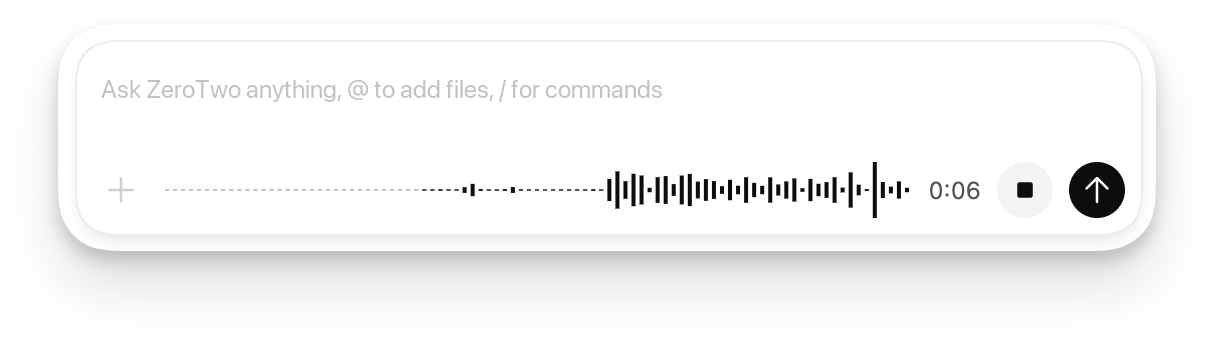
Prompting examples for Chat
Use Chat for questions, ideas, drafts, and everyday decisions. Start with the outcome you want, then add detail only when it changes the answer.Understand a topic
Draft and refine writing
Compare options
Make a practical plan
Prompting for ZeroTwo Work
Use Chat for quick questions, short rewrites, brainstorming, and lightweight drafts. Use ZeroTwo Work for tasks that draw on different sources or tools, involve a sequence of steps, make changes, or produce a larger deliverable. In ZeroTwo Work, describe the result you need, provide the source material, name the audience, and explain how you’ll review the work. Ask ZeroTwo to plan, gather the needed information, create files, and check them before it finishes.Use ZeroTwo Work efficiently
ZeroTwo Work is useful for time-consuming or recurring tasks, or for finished files you can reuse. A task that uses more credits can still be worthwhile if it saves time, improves quality, or helps you make an important decision. Start with one result you can review:- Include only relevant sources and limit the date range when appropriate.
- Define the audience, output format, and desired length.
- Separate required work from optional improvements or polish.
- Ask for a plan when the approach matters. Require your approval before ZeroTwo sends, publishes, or changes information other people rely on.
- Narrow or stop the task if it starts doing work you no longer need.
Turn source material into finished files
Research a decision
Coordinate a launch
Prompting ZeroCode
Use ZeroCode when you want ZeroTwo to work with code, a codebase, or developer tools. A useful ZeroCode prompt names the behavior you want, points to the relevant code or reproduction steps, preserves important constraints, and says how to verify the change. For a multi-step task, enter/plan in the app composer when you want ZeroCode to
investigate and propose an approach before editing. When Goal mode
is available, use /goal after the plan to set a persistent goal. See the app slash
commands
for the current command list.
How to read these examples
Each workflow includes:- When to use it and which ZeroCode surface fits best (IDE, CLI, or cloud).
- Steps with example user prompts.
- Context notes: what ZeroCode automatically sees vs what you should attach.
- Verification: how to check the output.
Note: The desktop app automatically includes your open files as context. In the CLI, mention paths explicitly, or attach files withZeroCode runs local commands inside a sandbox that limits file and network access. If a task needs to cross that boundary, ZeroCode follows your approval policy before continuing./mentionand@path autocomplete.
Explain a codebase
Use this when you are onboarding, inheriting a service, or trying to reason about a protocol, data model, or request flow.desktop app workflow (fastest for local exploration)
Open the most relevant files.
Select the code you care about (optional but recommended).
Prompt ZeroCode:
- Ask for a diagram or checklist you can verify:
Fix a bug
Use this when you have a failing behavior you can reproduce locally.desktop app workflow
Open the file where you think the bug lives, plus its nearest caller.
Prompt ZeroCode:
Write a test
Use this when you want to define the exact scope to test.desktop app workflow (selection-based)
Open the file with the function.
Select the lines that define the function. Choose "Add to ZeroCode Thread" from command palette to add these lines to the context.
Prompt ZeroCode:
- Supplied by “Add to ZeroCode Thread” command: the selected lines (this is the “line number” scope), plus open files.
Prototype from a screenshot
Use this when you want to turn a design mock, screenshot, or UI reference into a working prototype.desktop app workflow (image + existing files)
Attach the image in the ZeroCode chat (drag-and-drop or paste).
Prompt ZeroCode:
Iterate on UI with live updates
Use this when you want a tight “design → tweak → refresh → tweak” loop while ZeroCode edits code.Delegate refactor to the cloud
Use this when you want to design an approach with local context, then delegate the long implementation to a cloud chat that can run in parallel.Local planning (IDE)
Make sure your current work is committed or at least stashed so you can compare changes cleanly.
Ask ZeroCode to produce a refactor plan. If you have the $plan skill available, invoke it explicitly:
Review the plan and negotiate changes:
- Planning works best when ZeroCode can scan the current code locally (entrypoints, module boundaries, dependency graph hints).
Cloud delegation (IDE → Cloud)
If you haven't already done so, set up a ZeroCode cloud environment.
Click on the cloud icon beneath the prompt composer and select your cloud environment.
When you enter the next prompt, ZeroCode creates a new chat in the cloud that carries over the existing chat context (including the plan and any local source changes).
Review the cloud diff, iterate if needed.
Create a PR directly from the cloud or pull changes locally to test and finish up.
Iterate on additional milestones of the plan.
Do a local code review
Use this when you want a second set of eyes before committing or creating a PR.Review a GitHub pull request
Use this when you want review feedback without pulling the branch locally. Before you can use this, enable ZeroCode Code review on your repository. See Code review.GitHub workflow (comment-driven)
Open the pull request on GitHub.
Leave a comment that tags ZeroCode with explicit focus areas:
Optional: Provide more explicit instructions.
Update documentation
Use this when you need an accurate, clear documentation change.IDE or CLI workflow (local edits + local validation)
Identify the doc file(s) to change and open them (IDE) or @ mention them (IDE or CLI).
Prompt ZeroCode with scope and validation requirements:
After ZeroCode drafts the changes, review the documentation and iterate as needed.
- Read the rendered page.