

- ZeroTwo desktop app
- ZeroTwo on the web
- ZeroTwo desktop app
- ZeroTwo desktop app
Open Sites in the ZeroTwo desktop app. You can start a site from a prompt or
from a compatible local project, then return to the Sites view to manage it.
Get started with Sites
In ZeroTwo, include the word “website” in your prompt or mention@Sites to
start the Sites workflow explicitly.
1
Describe the Site
Describe the audience, purpose, required behavior, and information the Site
should use.
2
Review the Site
Review the generated content and behavior. Check that the Site uses the
intended information and handles data as expected.
3
Refine the Site
Describe the changes you want. Add relevant files or visual context when
they will help ZeroTwo make the change.
4
Manage and share the Site
Return to Sites to reopen or refine the Site. When it’s ready, choose who
can visit it and share the resulting link.
Prompt Sites for common tasks
For a new website, dashboard, or internal tool, include the audience, core experience, and required information:For an existing project, ask Sites to prepare and publish the current app:
Review Site analytics
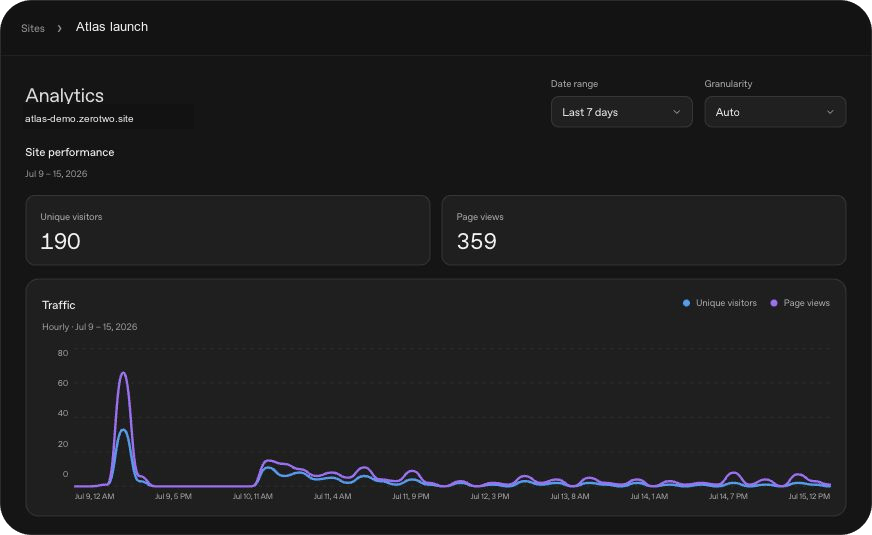
Sites records traffic automatically, so you can see how people use a deployed Site without adding an analytics SDK. The analytics view shows total unique visitors and page views, plus both metrics over time. Change the date range or granularity to inspect a different period.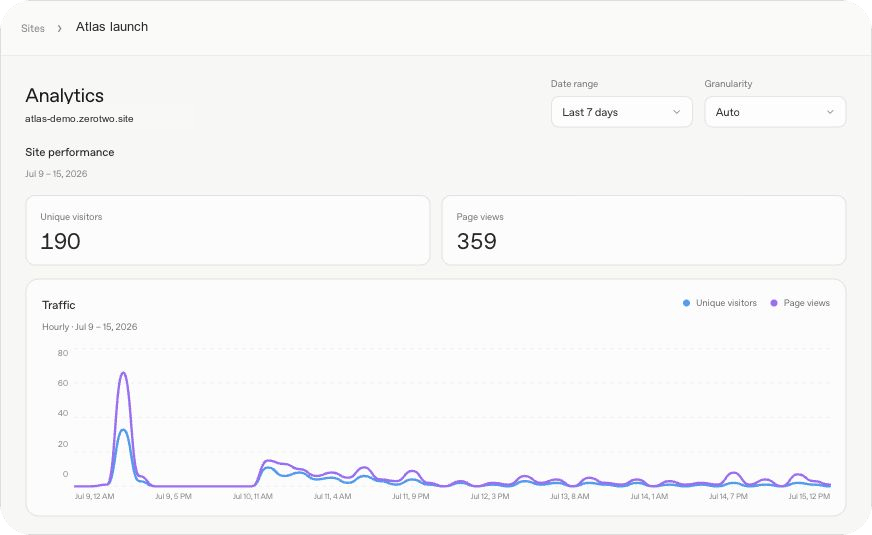
- ZeroTwo desktop app
- ZeroTwo on the web
Open Sites, find the Site, then select More actions > Analytics.
Add Sign in with ZeroTwo
Public Sites can remain open to everyone while offering optional Sign in with ZeroTwo for identity-aware features, such as saved progress, personalized views, or records that belong to a specific person. Workspace-restricted Sites already use ZeroTwo identity to enforce their sharing settings. Ask Sites to add the sign-in experience:How it works
How it works
Sites handles the sign-in and sign-out flows through platform-provided paths,
then returns the visitor to your Site:After a visitor signs in, Sites forwards their identity to the server through
these request headers:
oai-authenticated-user-emailcontains the authenticated email address.oai-authenticated-user-full-namemay contain a non-empty profile name. Treat it as optional and fall back to the email address.
Understand projects, versions, and deployments
A Site is a persistent hosted output that you can reopen, refine, configure, and share from Sites in ZeroTwo.- ZeroTwo on the web
A Sites project links a local source project to hosting managed through Sites.
Sites stores that linkage and optional storage binding names in
.openai/hosting.json. A newly created local starter can begin without a
project_id; Sites adds one after it provisions the hosted project.For example, a provisioned site that uses a relational database binding and no
file storage can contain:Choose a supported site shape
For new projects, the Sites workflow can start with its recommended Site starter. For an existing project, ask ZeroTwo to confirm that the project can produce compatible deployment artifacts before you request a deployment. Tell ZeroTwo about the product behavior you need so it can select the appropriate site shape:
Don’t request durable storage for temporary presentation state, such as a
theme choice or a dismissed banner. Do request it for product data that people
expect the hosted site to remember.
Control access and secrets
A new Site is limited to its owner and workspace admins until you change its access. Keep access limited while you review the content, data handling, and expected audience. Depending on your account and workspace settings, sharing options can include:- Owner and workspace admins
- Selected active users or groups, where supported
- Anyone in the workspace, where supported
- Anyone on the internet, only when public publishing is enabled
Configure runtime environment values
Open Sites, then open the Site’s settings to add, update, or remove hosted environment variables and secrets. Keep secret values out of prompts, attached files, and Site content.- ZeroTwo on the web
Go to zerotwo.ai/sites, find the Site, then select
More actions > Settings.
Connect a custom domain
Where custom domains are available, you can connect an apex domain or subdomain that you already own. Sites doesn’t register domains for you, so you must be able to change the domain’s DNS records. Custom domains aren’t available in Enterprise workspaces at launch. To connect a domain:- Open the Site’s settings and select Add domain.
- Enter the apex domain or subdomain you want to use.
- Copy the DNS records and values Sites provides, then add them through your domain provider.
- Wait a few minutes, then return to the Site’s settings and refresh the domain status.
Review before you share
Before you share a Site:- Review its content, generated text and images, links, uploaded files, forms, and interactive behavior.
- Confirm that it doesn’t expose confidential or sensitive information, secret values, or third-party content you don’t have the right to share.
- Test the Site from the intended visitor experience, including its access and sign-in behavior.
- Review features that collect personal information or other visitor content. Decide whether the Site should collect, share, or publish that information.
- If the Site uses Sign in with ZeroTwo, explain what visitor information it receives and how it uses that information.
- If the Site collects or processes personal data, comply with applicable privacy and data-protection laws.
- Choose the narrowest sharing option that fits the intended audience.
- Open the shared Site and confirm that the intended audience can visit it.
Take down or delete a Site
To remove access without deleting a Site, open its sharing settings and restrict access to yourself or selected people. Confirm that the previous audience can no longer open it. To permanently delete a Site:- Open Sites and locate the Site.
- Select Delete site and follow the instructions in the prompt.
- Enter the Site slug, then select Permanently delete.
Understand limits and unsupported uses
Sites hosts web experiences that run in the supported Sites runtime. Some frameworks, private networks, databases, background services, and hosting patterns aren’t supported. Sites doesn’t support data residency or inference residency at launch. This includes deployed Sites, Site code, D1 and R2 data and file storage, generated artifacts, and logs. Don’t use Sites to process Protected Health Information or payment-card data; target children under 13 or the applicable age of digital consent; enable financial transactions; distribute malware; enable phishing; impersonate people or organizations; or otherwise violate ZeroTwo policies. See Creating and managing ZeroTwo Sites for the current limits and policy links.Related documentation
- ZeroTwo desktop app
- ZeroTwo on the web
- ZeroTwo desktop app introduces app navigation, projects, and chats.
- Review and ship changes explains how to inspect source changes before publishing them.