

Set up Computer Use
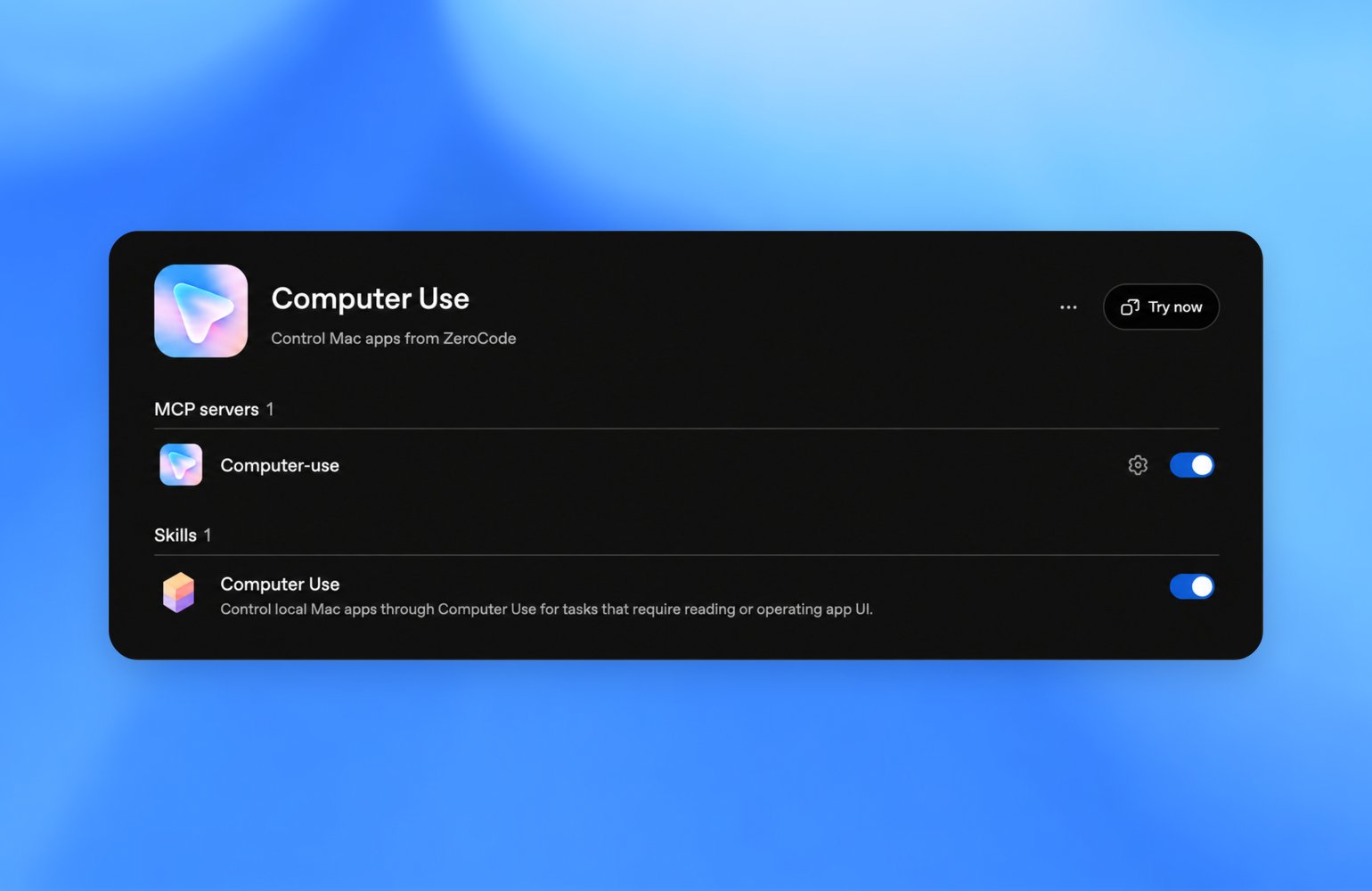
In the ZeroTwo desktop app, select ZeroTwo and switch to Work in the switcher, or select ZeroCode. Open Plugins > Computer Use and select Install plugin if prompted. If ZeroTwo shows Enable, select it. Turn on the Computer Use server and skill toggles, then select Try now to start.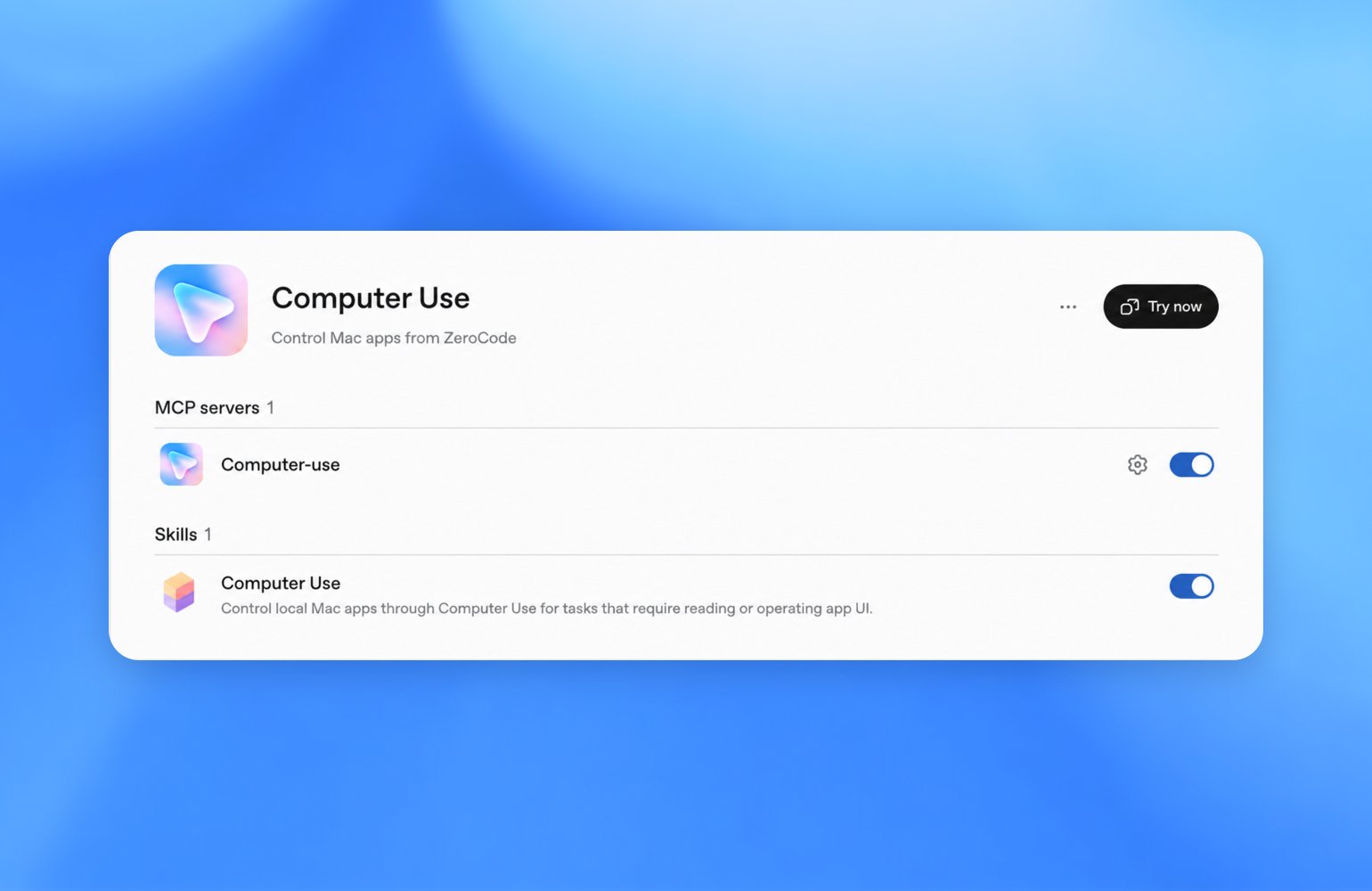
- Screen Recording permission so ZeroTwo can see the target app.
- Accessibility permission so ZeroTwo can click, type, and navigate.
When to use Computer Use
Choose Computer Use when the task depends on a graphical user interface that’s hard to verify through files or command output alone. Good fits include:- Testing a macOS app, Windows app, iOS simulator flow, or another desktop app that ZeroTwo is building.
- Performing a task that requires your web browser.
- Reproducing a bug that only appears in a graphical interface.
- Changing app settings that require clicking through a UI.
- Inspecting information in an app or data source that isn’t available through a plugin.
- On macOS, running a scoped task in the background while you keep working elsewhere.
- Executing a workflow that spans more than one app.
Windows foreground use
On Windows, Computer Use runs on the active desktop. It can’t operate in the background while you keep using the same Windows session, so expect ZeroTwo to move the pointer, type, and take over the foreground while the task runs. For Windows tasks that should continue while you step away, keep the Windows device unlocked and connected to the internet. Use remote control from your phone to check progress or send follow-up instructions, or run the ZeroTwo desktop app inside a Windows virtual machine so Computer Use takes over the VM instead of your main desktop.Start a Computer Use task
Mention@Computer or @AppName in your prompt, or ask ZeroTwo to use Computer
Use. Describe the exact app, window, or flow ZeroTwo should operate.
Permissions and approvals
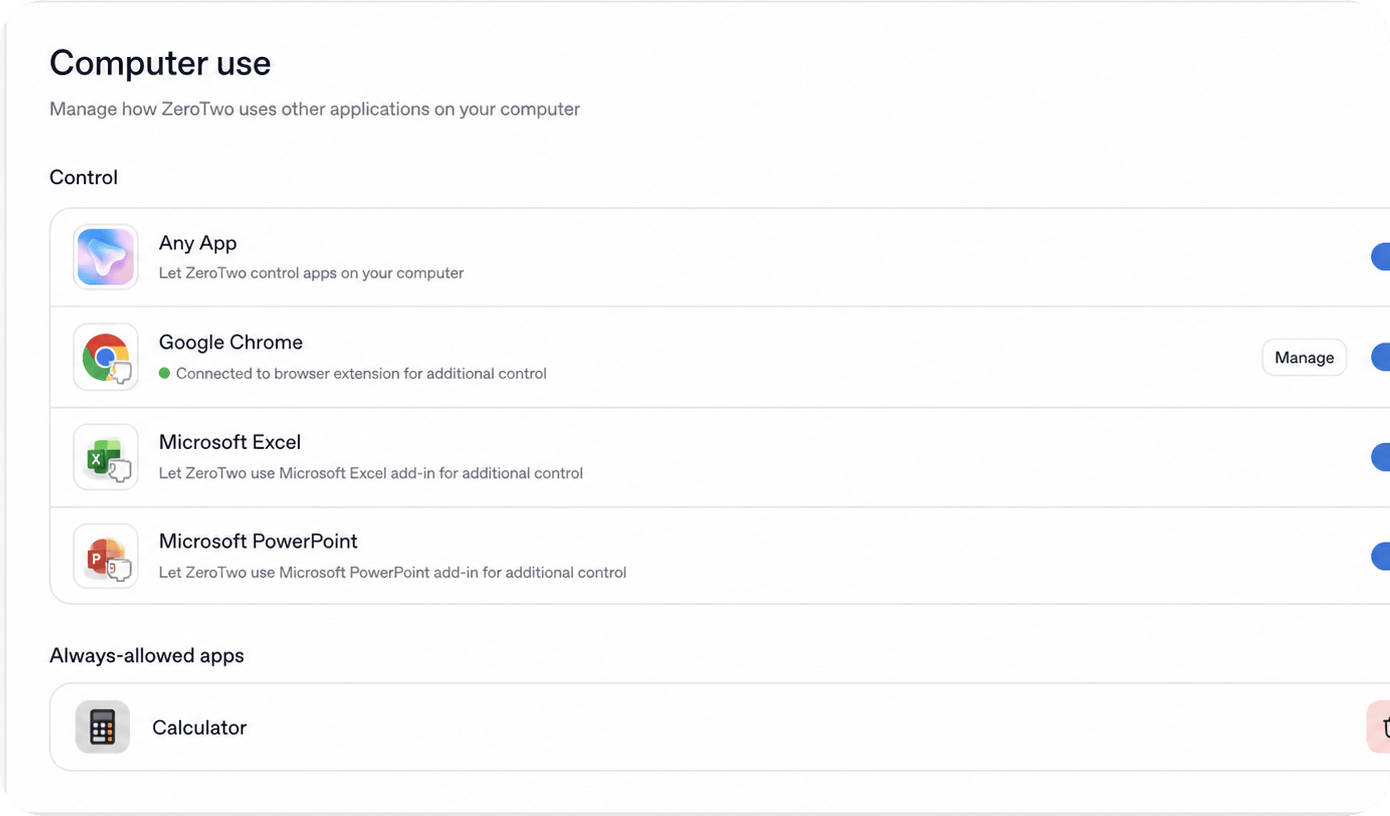
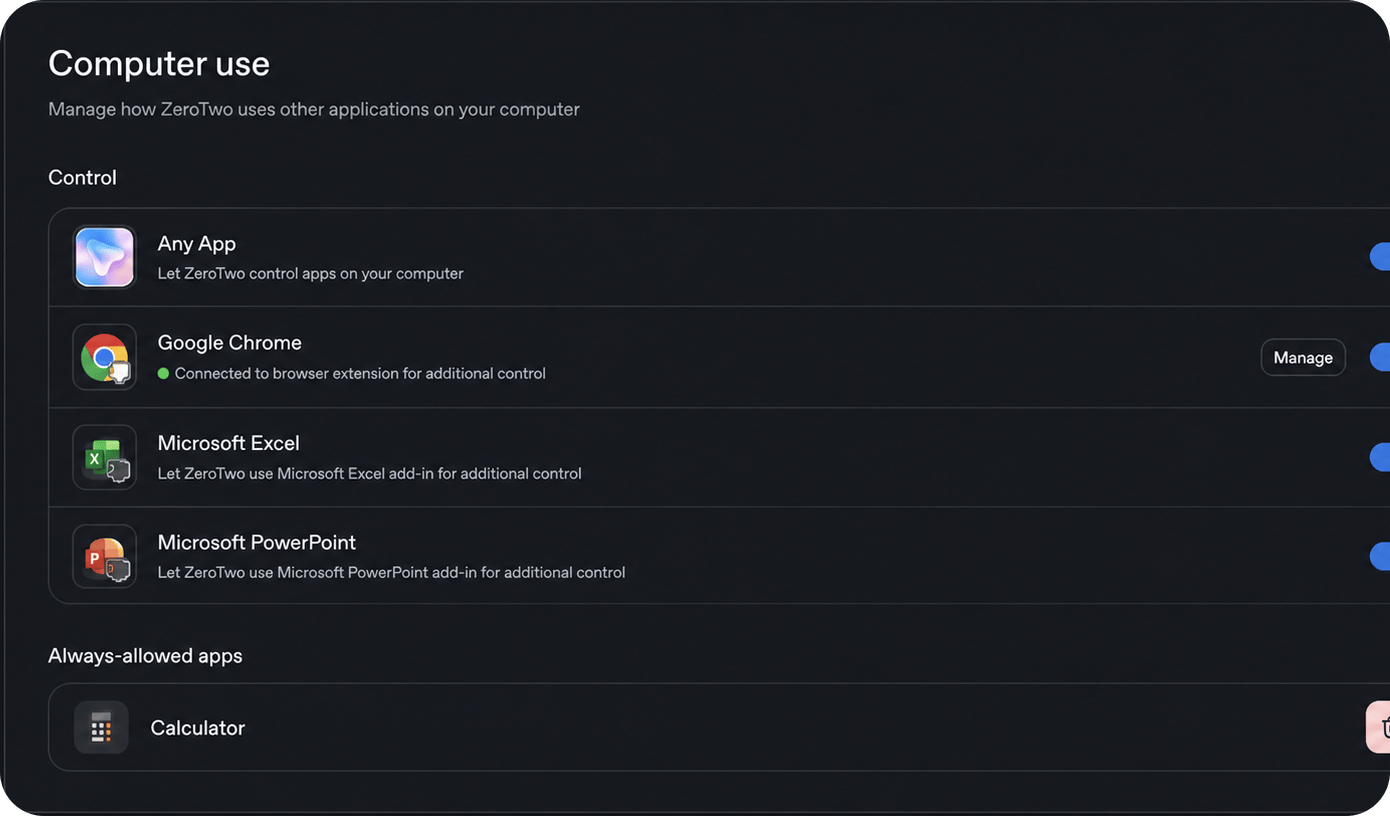
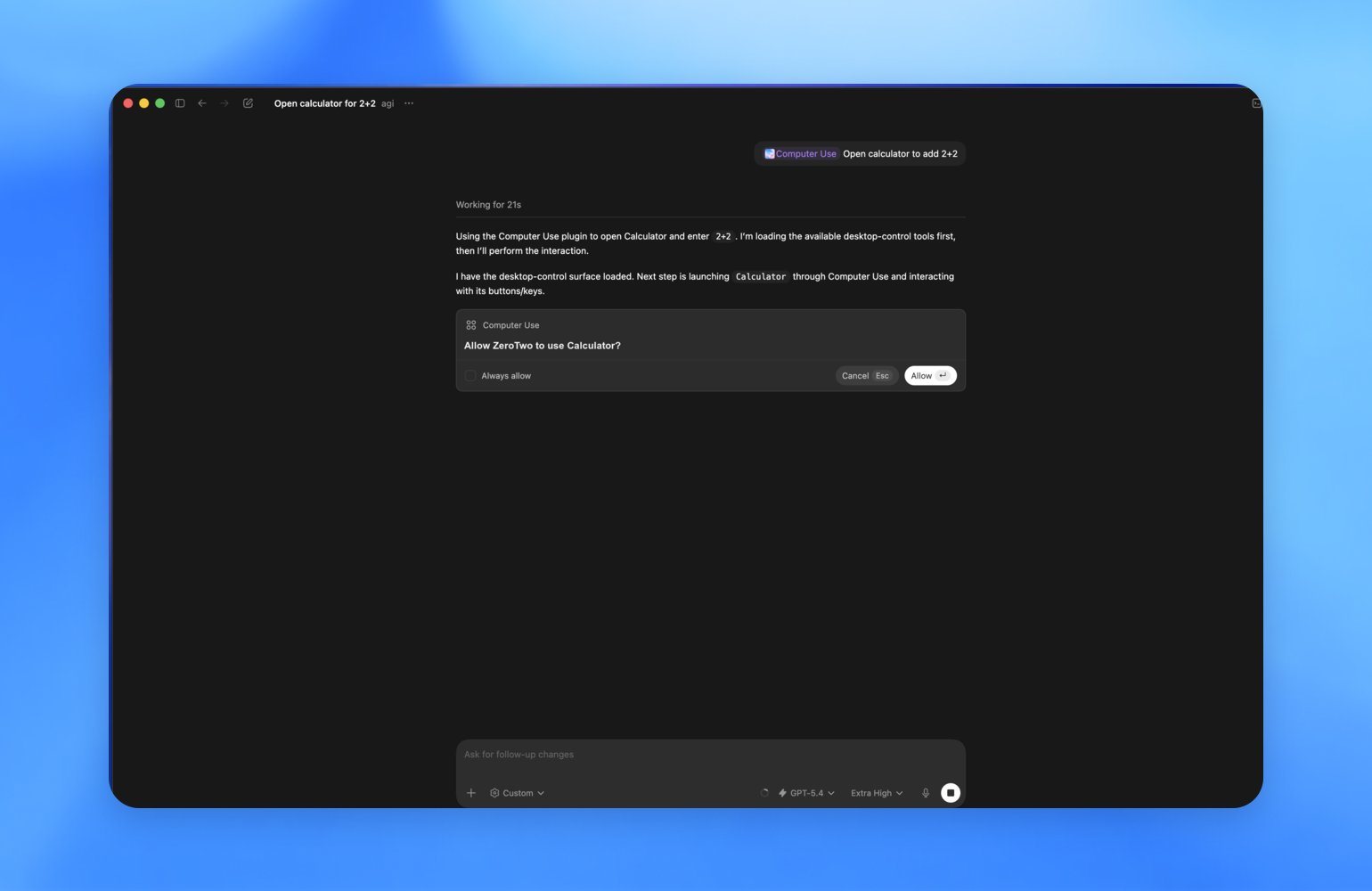
System permissions for Computer Use are separate from app approvals in ZeroTwo. On macOS, Screen Recording and Accessibility permissions let ZeroTwo see and operate apps. App approvals determine which apps you allow ZeroTwo to use. File reads, file edits, and shell commands still follow the sandbox and approval settings for the task. With Computer Use, ZeroTwo can see and take action only in the apps you allow. During a task, ZeroTwo asks for your permission before it can use an app on your computer. You can choose Always allow so ZeroTwo can use that app in the future without asking again. You can remove apps from the Always allow list in the Computer Use section of the ZeroTwo desktop app settings.
Configure Windows app policy
Configure Windows app policy
On Windows, Computer Use stores persistent app decisions in
Use the app identifier that Windows Computer Use reports, such as an executable
name for a desktop app or an app user model ID for a packaged app. ZeroTwo
prompts for apps that aren’t in the list. To revoke a saved decision, remove
the app from Settings > Computer Use > Always allow.This table stores local Computer Use decisions. It’s separate from the
admin-enforced
$ZEROTWO_HOME/config.toml. List the apps that Computer Use can open without
prompting:requirements.toml, where administrators can disable Computer
Use with [features].computer_use = false. Older
$ZEROTWO_HOME/computer-use/config.toml allow-list entries are migrated into the
current setting; its denied list isn’t part of the current policy schema.Locked use
Locked use is for macOS. On Windows, Computer Use works in the foreground. Locked use lets ZeroTwo use Computer Use after your Mac locks, but only after you enable it. Use it when a ZeroTwo task needs to use desktop apps from a connected device after the Mac locks. When you enable locked use, ZeroTwo installs an Apple authorization plug-in that participates in the macOS unlock flow. Locked use is intentionally narrow. It’s not a general-purpose remote-unlock path for your Mac, and it doesn’t let other apps or local processes unlock the computer. To use locked use:- Open Settings > Computer Use in the app.
- Enable locked use.
- Start a task that uses Computer Use from a connected device after your Mac’s screen has locked.
- The authorization window is short-lived and scoped to the current unlock attempt.
- Automatic unlock is available only to ZeroTwo during active Computer Use turns.
- ZeroTwo covers every display while the desktop is temporarily unlocked.
- If ZeroTwo detects local keyboard or pointer input, it relocks the Mac and pauses automatic unlock until you unlock it manually.
Safety guidance
With Computer Use, ZeroTwo can view screen content, take screenshots, and interact with windows, menus, keyboard input, and clipboard state in the target app. Treat visible app content, browser pages, screenshots, and files opened in the target app as context ZeroTwo may process while the task runs. Keep tasks narrow and stay present for sensitive flows:- Give ZeroTwo one clear target app or flow at a time.
- You can stop the task or take over your computer at any time.
- Keep sensitive apps closed unless they’re required for the task.
- On Windows, expect ZeroTwo to take over foreground input while it works; use a secondary device, a VM, or stop the task before using that desktop yourself.
- Avoid tasks that require secrets unless you’re present and can approve each step.
- Review app permission prompts before allowing ZeroTwo to use an app.
- Use Always allow only for apps you trust ZeroTwo to use automatically in future tasks.
- Stay present for account, security, privacy, network, payment, or credential-related settings.
- Cancel the task if ZeroTwo starts interacting with the wrong window.