

Browser isn’t available in ZeroTwo desktop app or the ZeroTwo desktop app. Open the ZeroTwo desktop app to use the built-in browser. Browser lets ZeroTwo open websites, gather current information, and take action while you stay in control. Use it to compare options, complete a multi-step task on a website, or review a page you’re building. Browser is available in ZeroTwo on the web and in the ZeroTwo desktop app. Treat page content as untrusted context. Review the site and proposed action before sharing sensitive information or allowing ZeroTwo to act.
- ZeroTwo on the web
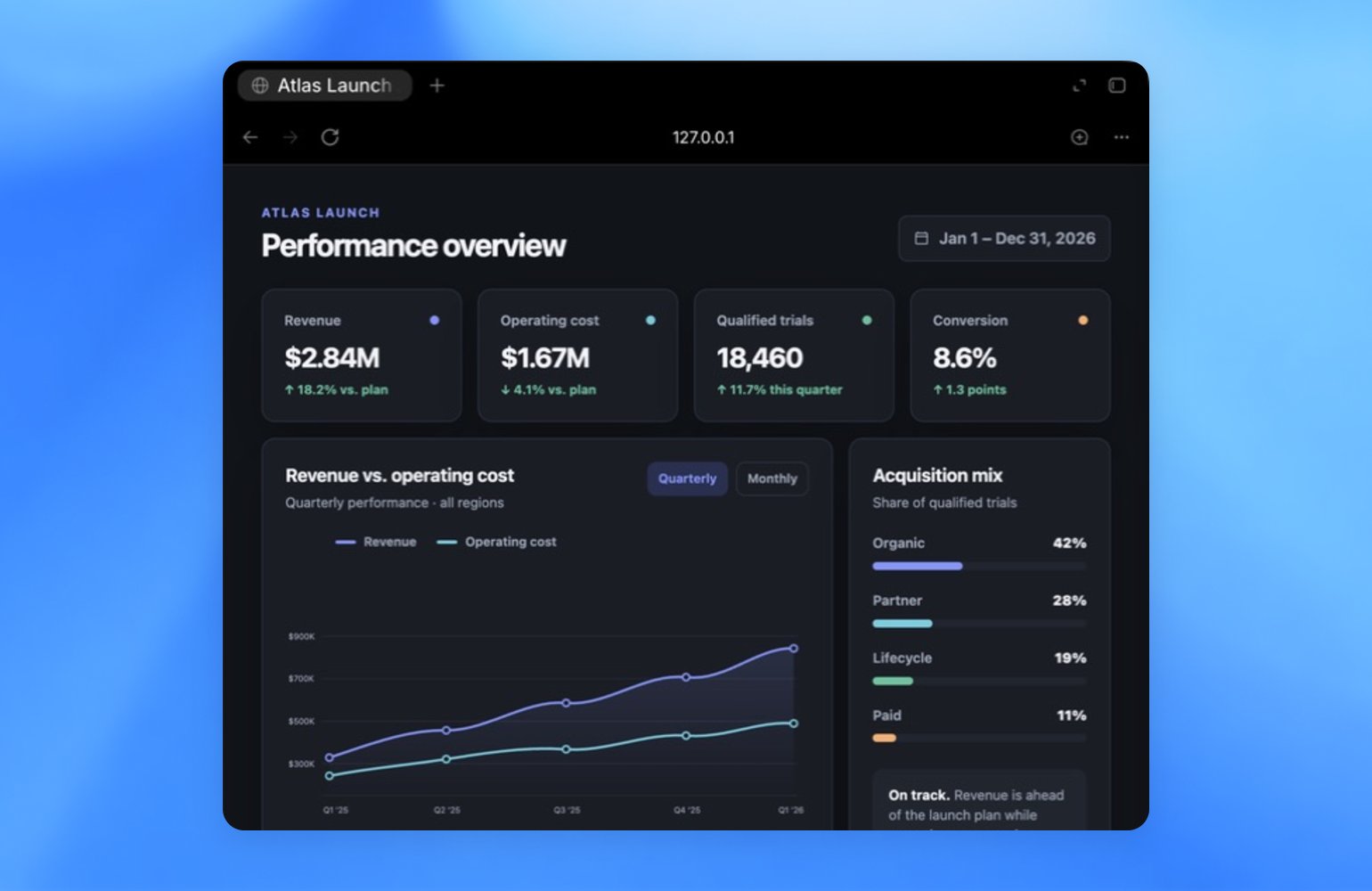
The built-in browser in the ZeroTwo desktop app gives you and ZeroTwo a shared
view of websites and local web apps inside a chat. Use it to preview a page,
leave visual feedback, or let ZeroTwo interact with a site on your behalf.The built-in browser uses a browser profile that is separate from your regular
browser. It doesn’t automatically share your existing tabs or browser session.
You can sign in directly when a task requires an account. Open Settings >
Browser to manage browser data and any profile-import features available on
your device.Browser downloads go to your system Downloads folder by default. In Settings >
Browser, you can choose another download location, reset it to the system
default, or turn on Ask where to save downloads.Use the Chrome extension instead when ZeroTwo needs
to work in an existing Chrome tab or use your regular Chrome profile.Open the built-in browser from the toolbar, by clicking a URL, by navigating
manually, or by pressing Cmd+Shift+B
(Ctrl+Shift+B on Windows).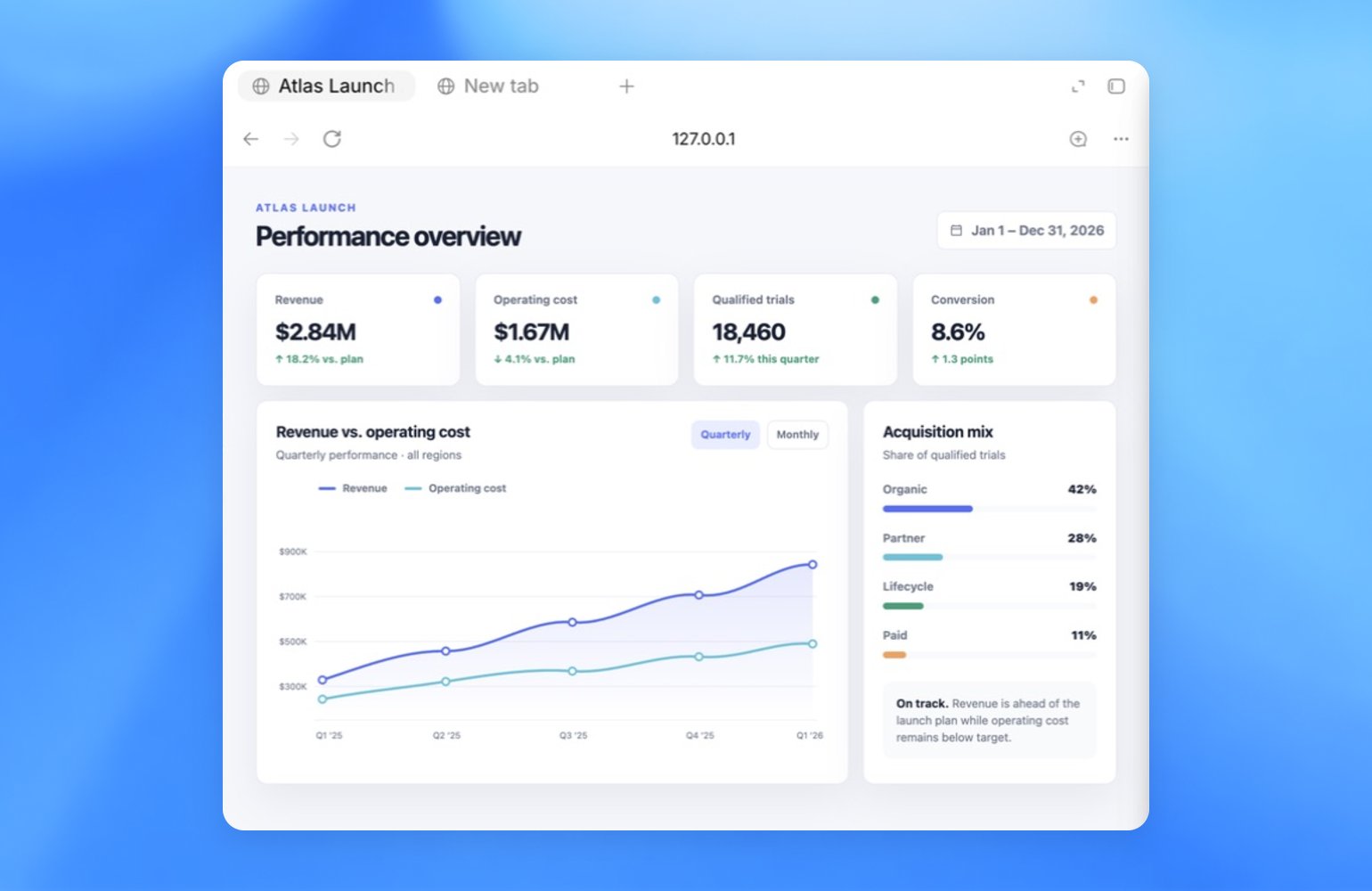
Search from the address bar
Start typing in the built-in browser’s address bar to find pages from its browsing history. Select a matching page to reopen it, or enter a search term to search Google when no history result matches.The built-in browser keeps its own profile and browsing history. Results don’t automatically include pages from your regular Chrome profile or other browsers.Manage browsing history
Open Settings > Browser to search the built-in browser’s history, reopen a visited page, or remove history entries when your organization permits it. Use Clear browsing data to choose a time range and the types of browsing data you want to remove.When available, ZeroTwo can ask to search your browsing history to find a page that matters to the current task. Review the request before allowing access. Browsing history can include internal URLs, search terms, and other sensitive information, so allow it only when the task requires that context.Computer Use in the browser
In the desktop app, Computer Use lets ZeroTwo Work or ZeroCode operate the built-in browser directly. The selected experience can open pages, click, type, inspect rendered state, take screenshots, and verify the result of its work in the page.Select ZeroTwo and turn on Work in the switcher, or select ZeroCode. Open the Plugins Directory and install Browser. Then ask ZeroTwo or ZeroCode to use the browser in your task, or reference it directly with@Browser.For example:Preview a page
- Start your app’s development server in the integrated terminal or with a local environment action.
- Open the local route, file-backed page, or public page by clicking a URL or navigating manually in the browser.
- Review the rendered state alongside the code diff.
- Leave browser comments on the elements or areas that need changes.
- Ask ZeroTwo to address the comments and keep the scope narrow.
Comment on the page
When a bug is visible only in the rendered page, use browser comments to give ZeroTwo precise feedback.- Turn on Annotation mode.
- Click an element, or drag to select an area.
- Write and save your comment.
- Send a message in the chat asking ZeroTwo to address the comments.
Styling feedback
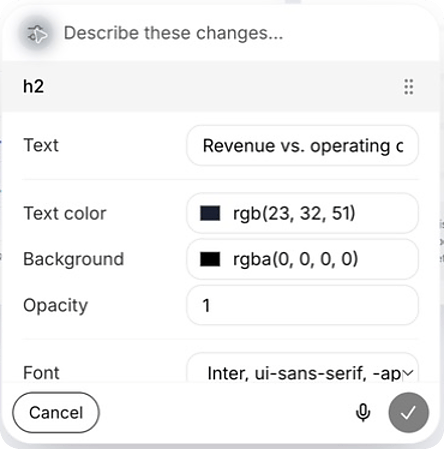
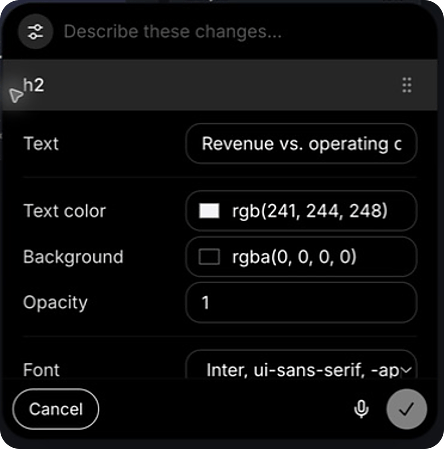
When you add an annotation to a section on the page, select Adjust next to the text input to give ZeroTwo more granular style feedback. You can change values such as font, text, spacing, and color, preview the result on the page, and then send the annotation with a clearer target.Keep browser tasks scoped
Keep each browser task small enough to review in one pass.- Name the page, route, or URL.
- Name the state you care about, such as loading, empty, error, or success.
- Leave comments on the exact elements or areas that need changes.
- Review the page again after ZeroTwo finishes.
- Ask ZeroTwo to start or check the development server before it opens a local page.
Developer mode
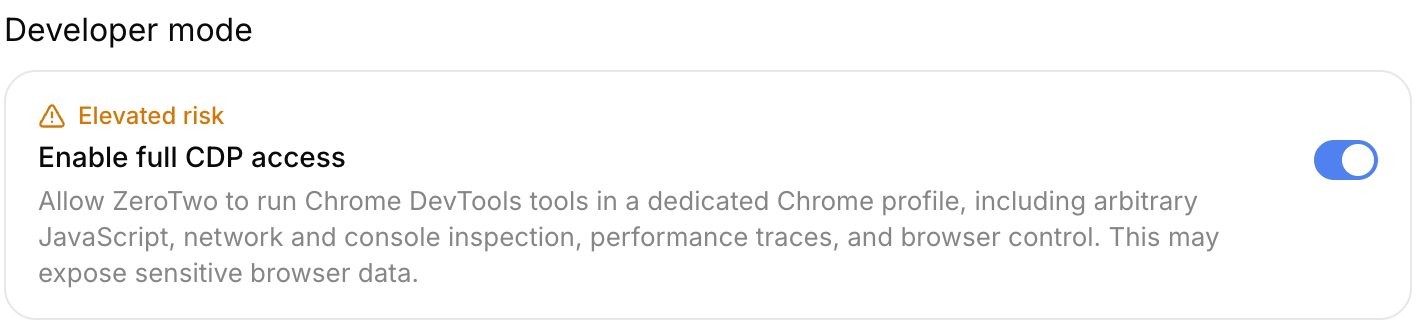
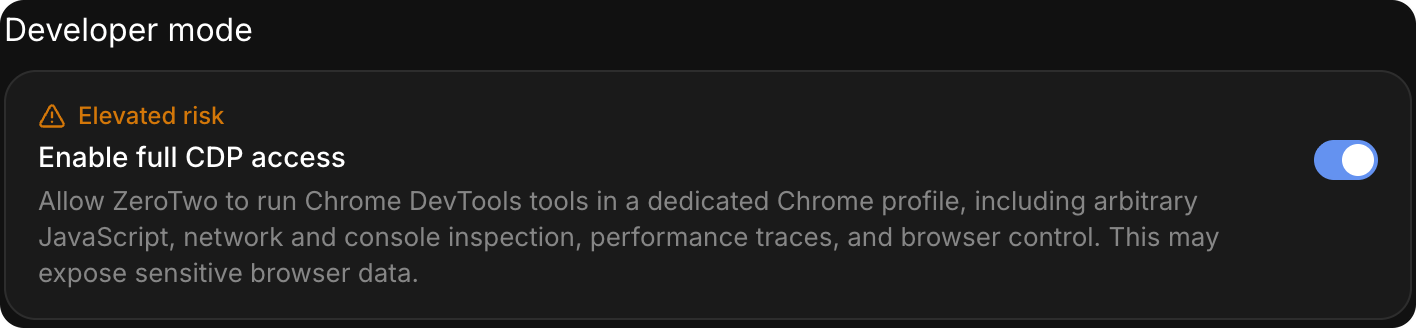
Developer mode works with Computer Use in Chrome and the built-in browser. It gives ZeroTwo controlled access to the Chrome DevTools Protocol (CDP). Use it to profile JavaScript, inspect console output and network traffic, examine the DOM and applied styles, or diagnose an issue in the live browser.To enable it, open Settings > Browser and, under Developer mode, turn on Enable full CDP access. If your organization has disabled this setting, you can’t enable it locally. Admins can setbrowser_use_full_cdp_access = false under [features] in
requirements.toml
to disable full CDP access and prevent users from enabling the corresponding
setting in the ZeroTwo desktop app.Full CDP access can expose sensitive browser internals. ZeroTwo asks for
explicit approval before it uses full CDP to inspect a website. Review the
site, task, and requested access before approving it.Use @Browser for the built-in browser. To use Developer mode in Chrome,
set up the Chrome extension and invoke @Chrome.For example: