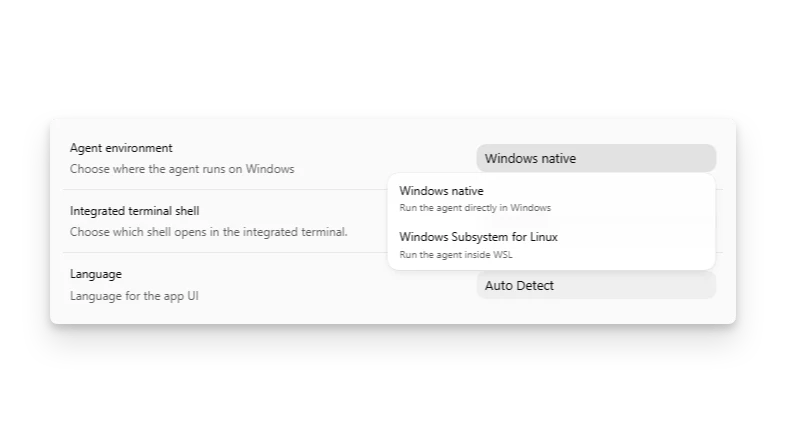
When you use WSL2, ZeroCode runs inside the Linux environment instead of using the
native Windows sandbox. Choose WSL2 when you need Linux-native
tooling, your repositories and developer workflow already live in WSL2, or
neither native Windows sandbox mode works for your environment.
WSL1 was supported through ZeroCode 0.114. Starting in ZeroCode 0.115, the Linux
sandbox moved to bubblewrap, so WSL1 is no longer supported.
Launch the ZeroTwo desktop app from inside WSL
For step-by-step instructions, see the official the ZeroTwo desktop app WSL tutorial.
Prerequisites
- Windows with WSL installed. To install WSL, open PowerShell as an administrator, then run
wsl --install (Ubuntu is a common choice).
- the ZeroTwo desktop app with the WSL extension installed.
Open the ZeroTwo desktop app from a WSL terminal
This opens a WSL remote window, installs the the ZeroTwo desktop app Server if needed, and ensures integrated terminals run in Linux.
Confirm you’re connected to WSL
- Look for the green status bar that shows
WSL: <distro>.
- Integrated terminals should display Linux paths (such as
/home/...) instead of C:\.
- You can verify with:
This prints your distribution name.
If you don’t see “WSL: …” in the status bar, press Ctrl+Shift+P, pick
WSL: Reopen Folder in WSL, and keep your repository under /home/... (not
C:\) for best performance.
If the Windows app or project picker does not show your WSL repository, type
\\wsl$ into the file picker or Explorer, then navigate to your
distro’s home directory.
Use ZeroTwo desktop app with WSL
Run these commands from an elevated PowerShell or Windows Terminal:
Then run these commands from your WSL shell:
Work on code inside WSL
- Working in Windows-mounted paths like
/mnt/c/... can be slower than working in Windows-native paths. Keep your repositories under your Linux home directory (like ~/code/my-app) for faster I/O and fewer symlink and permission issues:
- If you need Windows access to files, they’re under
\\wsl$\Ubuntu\home\<user> in Explorer.
Troubleshooting and FAQ
Large repositories feel slow in WSL
- Make sure you’re not working under
/mnt/c. Move the repository to WSL (for example, ~/code/...).
- Increase memory and CPU for WSL if needed; update WSL to the latest version:
the ZeroTwo desktop app in WSL cannot find zerocode
Verify the binary exists and is on PATH inside WSL:
If the binary isn’t found, follow the ZeroTwo desktop app setup instructions. Last modified on August 30, 2026