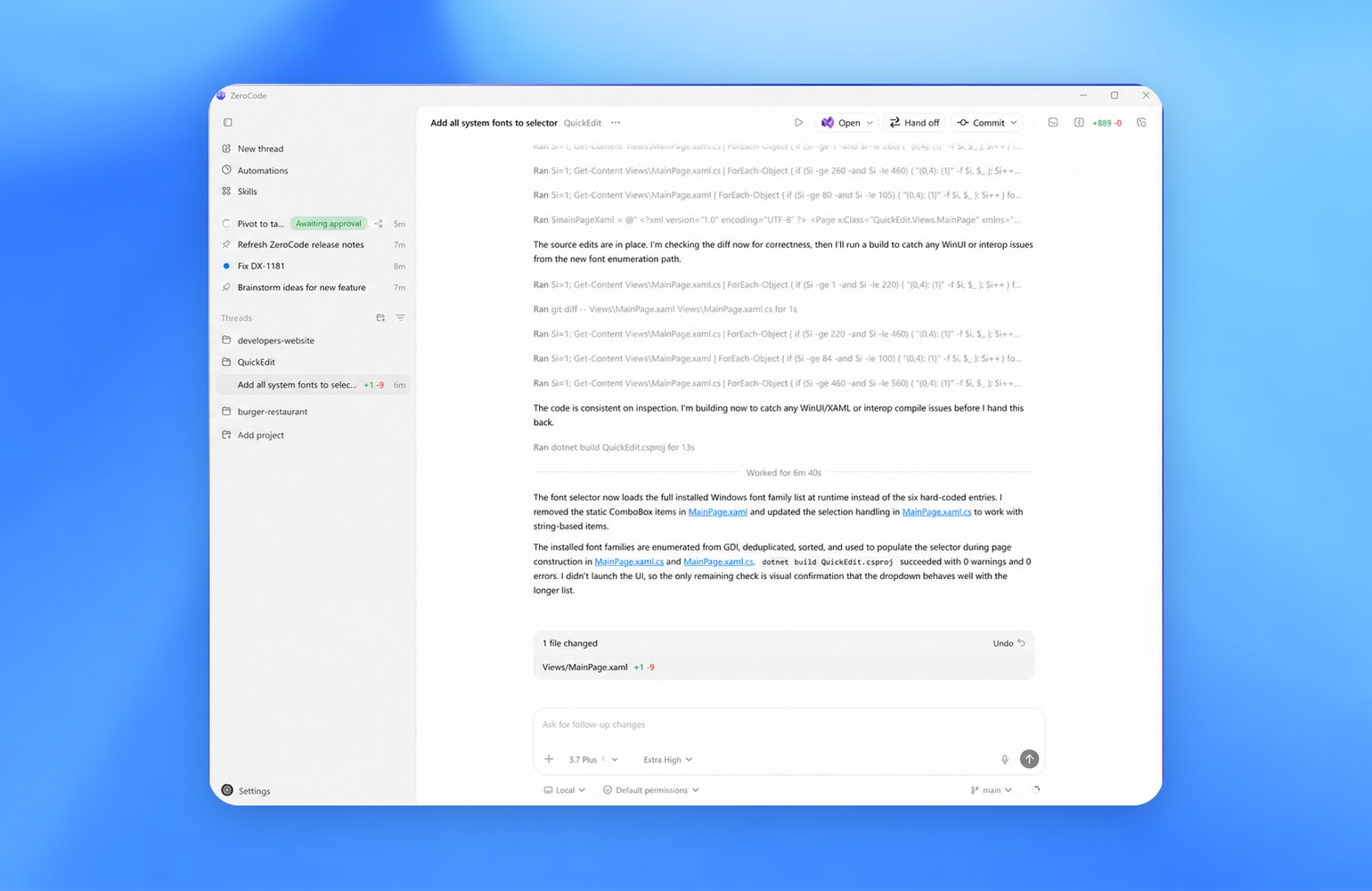
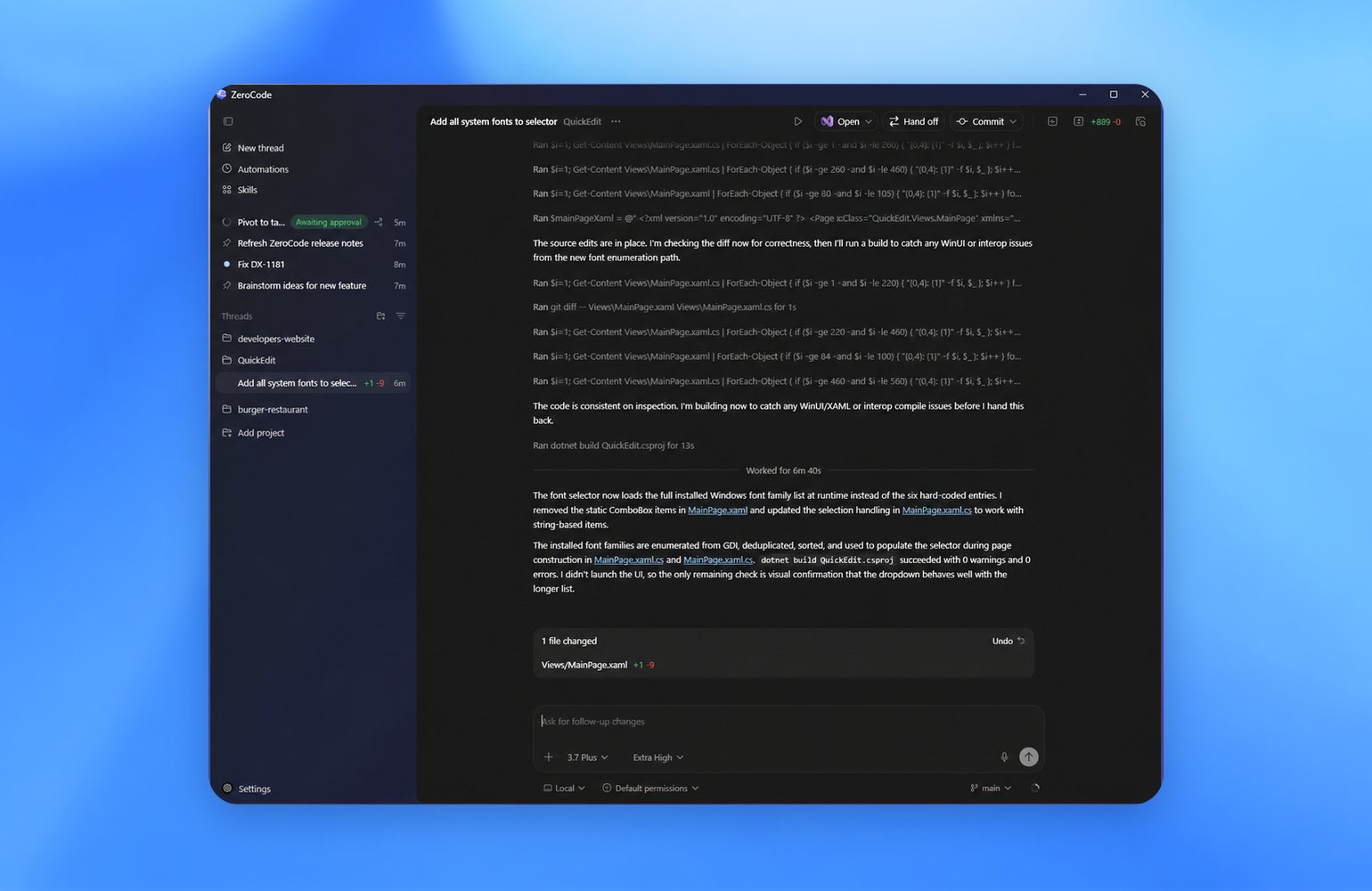
The ZeroTwo desktop app for Windows gives you one interface for
working across projects, running parallel chats, and reviewing results.
The Windows app supports core workflows such as worktrees, scheduled tasks, Git
functionality, the built-in browser, file previews, plugins, and skills.
It runs natively on Windows using PowerShell and the
Windows sandbox, or you can configure it to
run in Windows Subsystem for Linux 2 (WSL2).
Download the ZeroTwo desktop app
Download the ZeroTwo desktop app for Windows.
Then follow the quickstart to get started.
For enterprise installation and update options, see
Deploy the Windows app.
If you prefer a command-line install path, run:
Native sandbox
The ZeroTwo desktop app on Windows supports a native Windows sandbox when the agent runs in PowerShell, and uses Linux sandboxing when you run the agent in Windows Subsystem for Linux 2 (WSL2). To apply sandbox protections in either mode, select Ask for approval beneath the composer before sending messages to ZeroCode.
Running ZeroCode in full access mode means ZeroCode is not limited to your project
directory and might perform unintentional destructive actions that can lead to
data loss. Keep sandbox boundaries in place and use
rules for targeted exceptions, or set your
approval policy to
never to have
ZeroCode attempt to solve problems without asking for escalated permissions,
based on your approval and security setup.
Customize for your dev setup
Preferred editor
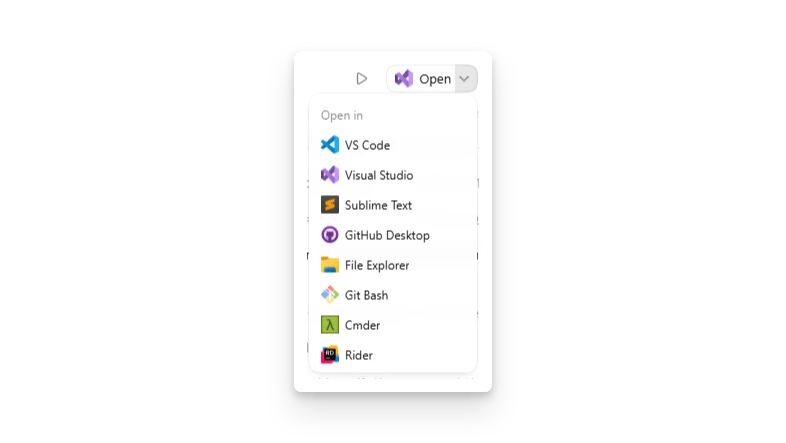
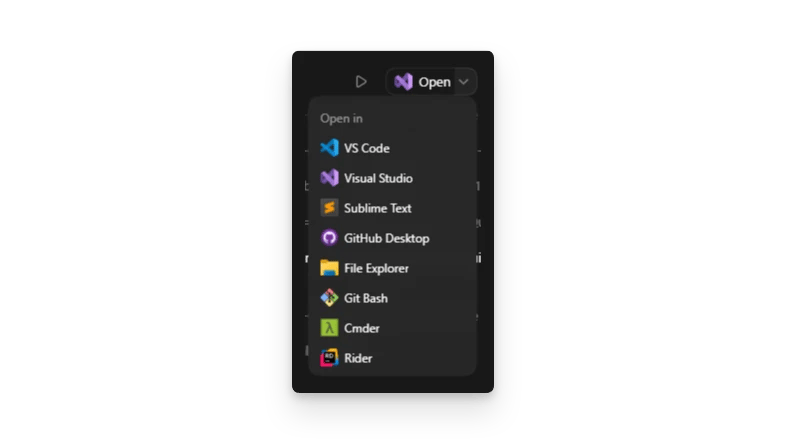
Choose a default app for Open, such as Visual Studio, the ZeroTwo desktop app, or another
editor. You can override that choice per project. If you already picked a
different app from the Open menu for a project, that project-specific
choice takes precedence.
Integrated terminal
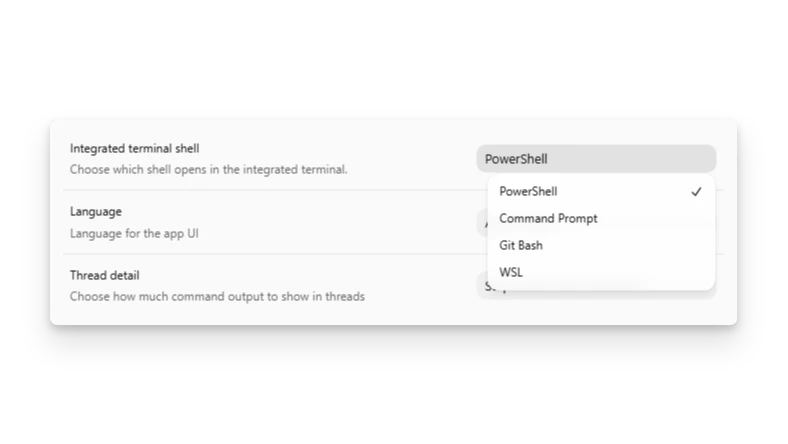
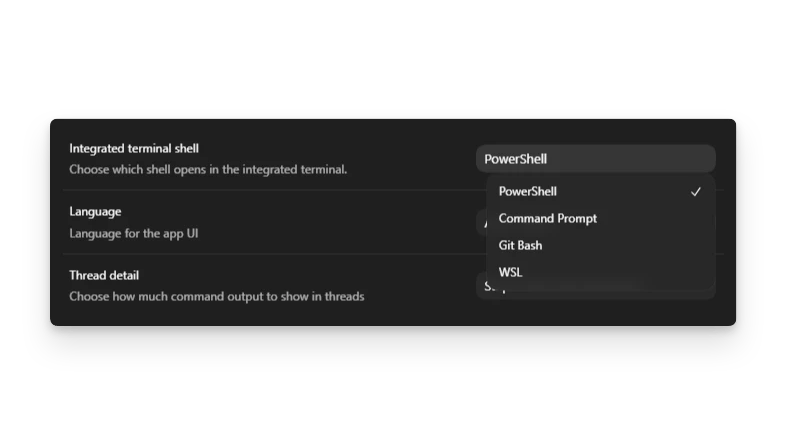
You can also choose the default integrated terminal. Depending on what you have
installed, options include:
- PowerShell
- Command Prompt
- Git Bash
- WSL
This change applies only to new terminal sessions. If you already have an
integrated terminal open, restart the app or start a new chat before
expecting the new default terminal to appear.
Windows Subsystem for Linux (WSL)
By default, the ZeroTwo desktop app uses the Windows-native ZeroCode agent. That means the agent
runs commands in PowerShell. The app can still work with projects that live in
Windows Subsystem for Linux 2 (WSL2) by using the wsl CLI when needed.
If you want to add a project from the WSL filesystem, click Add new project
or press Ctrl+O, then type \\wsl$\ into the File
Explorer window. From there, choose your Linux distribution and the folder you
want to open.
If you plan to keep using the Windows-native agent, prefer storing projects on
your Windows filesystem and accessing them from WSL through
/mnt/<drive>/.... This setup is more reliable than opening projects
directly from the WSL filesystem.
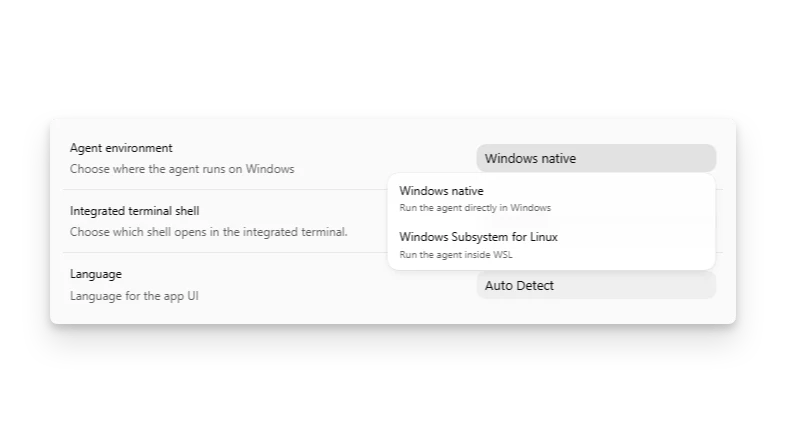
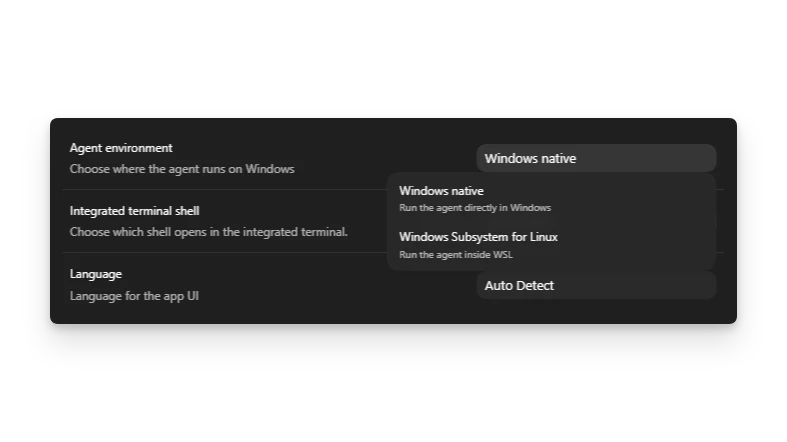
If you want the agent itself to run in WSL2, open Settings,
switch the agent from Windows native to WSL, and restart the app. The
change doesn’t take effect until you restart. Your projects should remain in
place after restart.
WSL1 was supported through ZeroCode 0.114. Starting in ZeroCode 0.115, the Linux
sandbox moved to bubblewrap, so WSL1 is no longer supported.
You configure the integrated terminal independently from the agent. See
Customize for your dev setup for the
terminal options. You can keep the agent in WSL and still use PowerShell in the
terminal, or use WSL for both, depending on your workflow.
ZeroCode works best when a few common developer tools are already installed:
- Git: Powers the review panel in the ZeroTwo desktop app and lets you inspect or
revert changes.
- Node.js: A common tool that the agent uses to perform tasks more
efficiently.
- Python: A common tool that the agent uses to perform tasks more
efficiently.
- .NET SDK: Useful when you want to build native Windows apps.
- GitHub CLI: Powers GitHub-specific functionality in the ZeroTwo desktop app.
Install them with the default Windows package manager winget by pasting this
into the integrated terminal or
asking ZeroCode to install them:
After installing GitHub CLI, run gh auth login to enable GitHub features in
the app.
If you need a different Python or .NET version, change the package IDs to the
version you want.
Troubleshooting and FAQ
Run commands with elevated permissions
If you need ZeroCode to run commands with elevated permissions, start the ZeroTwo
desktop app itself as an administrator. After installation, open the Start menu,
find the app, and choose Run as administrator. The ZeroCode agent inherits that
permission level.
PowerShell execution policy blocks commands
If you have never used tools such as Node.js or npm in PowerShell before, the
ZeroCode agent or integrated terminal may hit execution policy errors.
This can also happen if ZeroCode creates PowerShell scripts for you. In that case,
you may need a less restrictive execution policy before PowerShell will run
them.
An error may look something like this:
A common fix is to set the execution policy to RemoteSigned:
For details and other options, check Microsoft’s
execution policy guide
before changing the policy.
Local environment scripts on Windows
If your local environment uses cross-platform
commands such as npm scripts, you can keep one shared setup script or
set of actions for every platform.
If you need Windows-specific behavior, create Windows-specific setup scripts or
Windows-specific actions.
Actions run in the environment used by your integrated terminal. See
Customize for your dev setup.
Local setup scripts run in the agent environment: WSL if the agent uses WSL,
and PowerShell otherwise.
Share config, auth, and sessions with WSL
The Windows app uses the same ZeroCode home directory as native ZeroCode on Windows:
%USERPROFILE%\.zerocode.
If you also run the ZeroTwo desktop app inside WSL, the CLI uses the Linux home
directory by default, so it doesn’t automatically share configuration, cached
auth, or session history with the Windows app.
To share them, use one of these approaches:
- Sync WSL
~/.zerotwo with %USERPROFILE%\.zerocode on your file system.
- Point WSL at the Windows ZeroCode home directory by setting
ZEROTWO_HOME:
If you want that setting in every shell, add it to your WSL shell profile, such
as ~/.bashrc or ~/.zshrc.
Git features are unavailable
If you don’t have Git installed natively on Windows, the app can’t use some
features. Install it with winget install Git.Git from PowerShell or cmd.exe.
Git isn’t detected for projects opened from \\wsl$
For now, if you want to use the Windows-native agent with a project also
accessible from WSL, the most reliable workaround is to store the project
on the native Windows drive and access it in WSL through /mnt/<drive>/....
Cmder isn’t listed in the open dialog
If Cmder is installed but doesn’t show in ZeroCode’s open dialog, add it to the
Windows Start Menu: right-click Cmder and choose Add to Start, then
restart ZeroCode or reboot. Last modified on August 30, 2026