

SKILL.md instructions when they decide to use that skill.
In ZeroCode, the initial list also includes each skill’s file path. To avoid
crowding out the rest of the prompt, this list uses at most 2% of the model’s
context window, or 8,000 characters when the context window is unknown. If many
skills are installed, ZeroCode shortens skill descriptions first. For large skill
sets, ZeroCode may omit some skills from the initial list and show a warning.
This budget applies only to the initial skills list. When ZeroCode selects a skill, it still reads the full SKILL.md instructions for that skill.
A skill is a directory with a SKILL.md file plus optional scripts and references. The SKILL.md file must include name and description.
How ZeroTwo and ZeroCode use skills
ZeroTwo and ZeroCode can activate skills in two ways:- Explicit invocation: Include the skill directly in your prompt. In
ZeroTwo, type
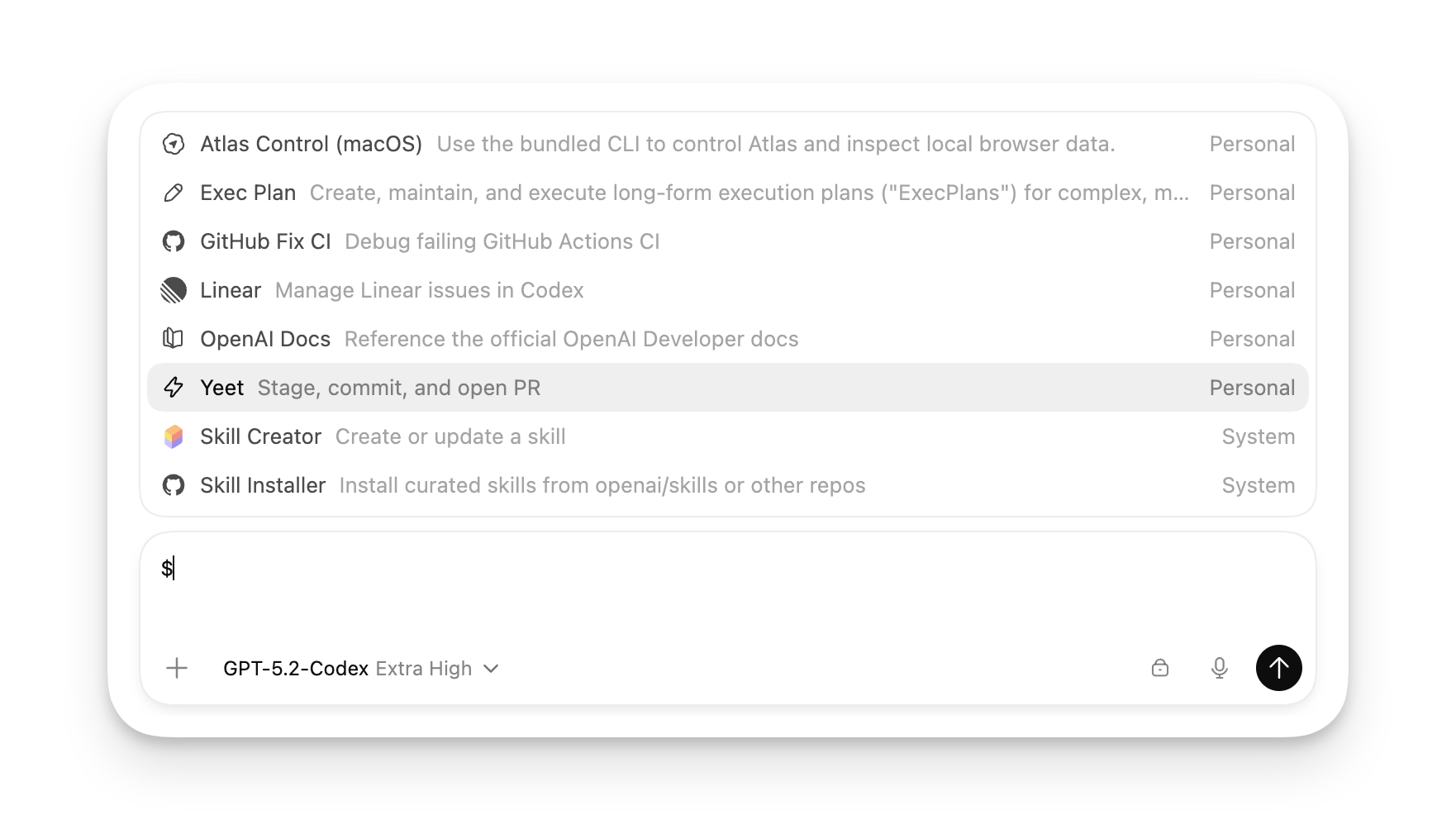
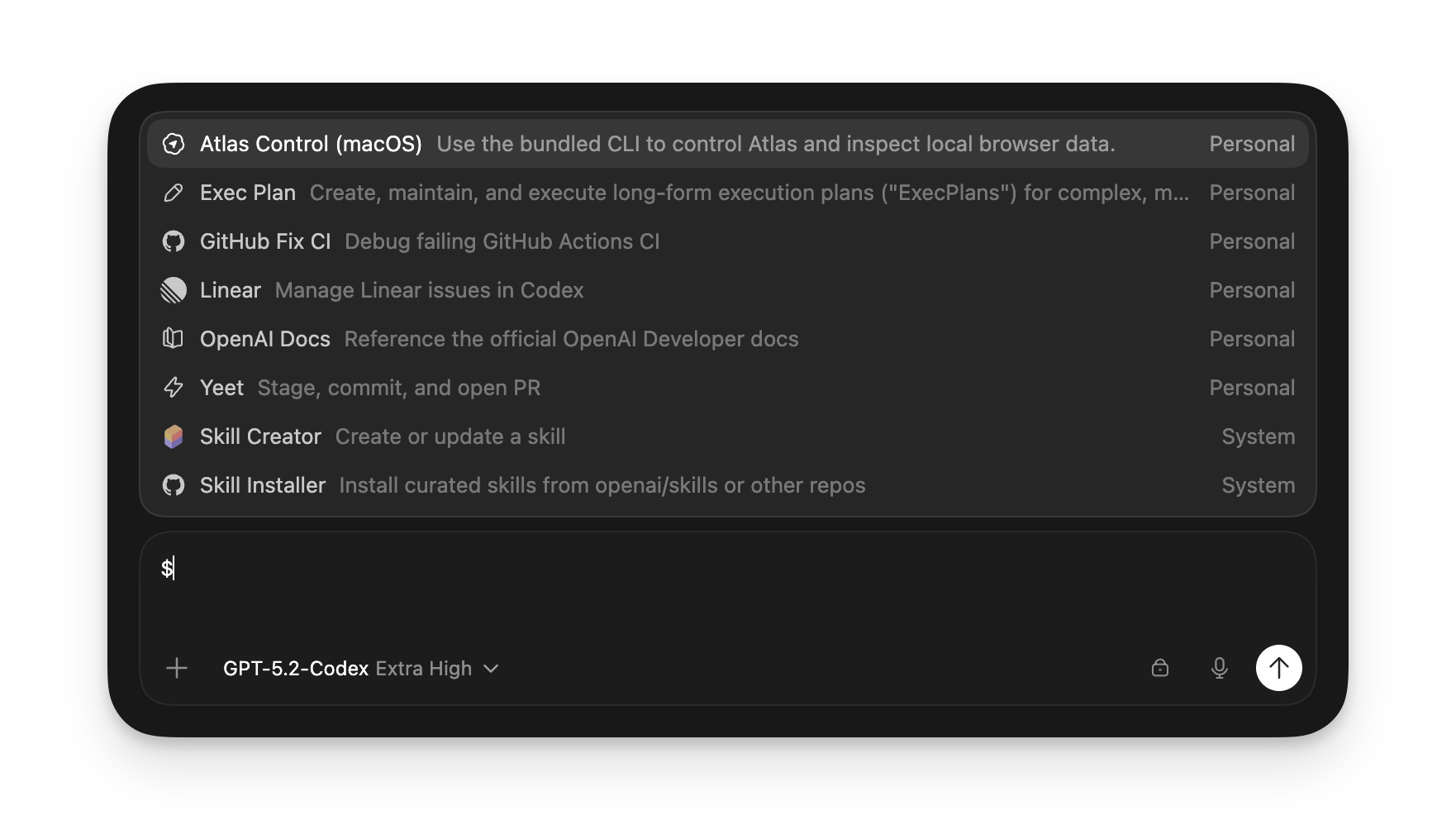
@to select a skill. In ZeroTwo desktop app or the desktop app, run/skillsor type$to mention a skill. - Implicit invocation: ZeroTwo or ZeroCode can choose a skill when your task
matches the skill
description.
description, write concise descriptions
with clear scope and boundaries. Front-load the key use case and trigger words
so a host can still match the skill if descriptions are shortened.
Create a skill
If you already know the workflow and it’s easier to show than describe, use Record & Replay. The recorder captures the workflow, inspects the steps, and drafts a reusable skill from the demonstration. If you want to describe the skill instead, use the built-in creator. In ZeroTwo Work, invoke it as@skill-creator. In ZeroCode, invoke it as:
SKILL.md file:
Where ZeroCode loads local skills
ZeroCode reads skills from repository, user, admin, and system locations. For repositories, ZeroCode scans.agents/skills in every directory from your current working directory up to the repository root. If two skills share the same name, ZeroCode doesn’t merge them; both can appear in skill selectors.
ZeroCode supports symlinked skill folders and follows the symlink target when scanning these locations.
These locations are for authoring and local discovery. When you want to
distribute reusable skills beyond a single repo, or optionally bundle them with
connectors, use plugins.
Distribute skills with plugins
Direct skill folders are best for local authoring and repo-scoped workflows. If you want to distribute a reusable skill, bundle two or more skills together, or ship a skill alongside a connector, package them as a plugin. Plugins can include one or more skills. They can also optionally bundle registered MCP server connections, bundled MCP server configuration, and presentation assets in a single package.Install curated skills for local use
To add curated skills beyond the built-ins for your own local ZeroCode setup, use$skill-installer. For example, to install the $linear skill:
Enable or disable local ZeroCode skills
Use[[skills.config]] entries in ~/.zerotwo/config.toml to disable a skill without deleting it:
~/.zerotwo/config.toml.
Optional metadata
Addagents/openai.yaml to configure UI metadata in the ZeroTwo desktop app, to set invocation policy, and to declare tool dependencies for a more seamless experience with using the skill.
allow_implicit_invocation (default: true): When false, ZeroCode won’t implicitly invoke the skill based on user prompt; explicit $skill invocation still works.
Best practices
- Keep each skill focused on one job.
- Prefer instructions over scripts unless you need deterministic behavior or external tooling.
- Write imperative steps with explicit inputs and outputs.
- Test prompts against the skill description to confirm the right trigger behavior.