> ## Documentation Index
> Fetch the complete documentation index at: https://docs.zerotwo.ai/llms.txt
> Use this file to discover all available pages before exploring further.
# Sites
Sites is in public beta. Availability can depend on your plan, region, and
workspace settings. Plan-specific usage limits apply across all Sites during
the beta. ZeroTwo shows the current limits and notifies you as you approach
one. Reaching a limit can prevent you from creating a Site, adding storage, or
keeping a high-usage Site public, but you can still edit and manage existing
Sites.
Sites lets ZeroTwo create, host, refine, and share websites, web apps, and games.
Use Sites when you want to turn a prompt or compatible existing project into a
hosted experience without setting up a separate deployment workflow.
Open **Sites** in the ZeroTwo desktop app. You can start a site from a prompt or
from a compatible local project, then return to the Sites view to manage it.
Use Sites in ZeroTwo on the web to create and manage hosted sites. Select
**More** > **Sites**, or go directly to
[zerotwo.ai/sites](https://zerotwo.ai/sites), to find Sites you've created.
Sites doesn't have a standalone ZeroTwo desktop app management view. Use ZeroTwo web or
the desktop app to create, save, deploy, and manage a Sites project. You can
still use ZeroTwo desktop app to edit and test a local project before publishing it.
Sites doesn't have a standalone desktop app management view. Use ZeroTwo web
or the desktop app for Sites operations, and use the desktop app to edit and
test the local source project.
Every Sites deployment URL is a production deployment. If you want to review a
build before it becomes live, ask ZeroTwo to save a version without deploying
it.
## Get started with Sites
In ZeroTwo, include the word "website" in your prompt or mention `@Sites` to
start the Sites workflow explicitly.
Describe the audience, purpose, required behavior, and information the Site
should use.
Review the generated content and behavior. Check that the Site uses the
intended information and handles data as expected.
Describe the changes you want. Add relevant files or visual context when
they will help ZeroTwo make the change.
Return to **Sites** to reopen or refine the Site. When it's ready, choose who
can visit it and share the resulting link.
**ZeroTwo on the web**
In the preview, select **Edit**. Under **Describe website edits**, describe the
changes you want. Use **Screenshot** or **Add files and more** when additional
context would help.
## Prompt Sites for common tasks
For a new website, dashboard, or internal tool, include the audience, core
experience, and required information:
```text theme={null}
Build a project request dashboard for my operations team. Let team members
submit requests, see who owns each one, update the status, and filter the list.
Require people to sign in with their workspace account, and keep the request
data saved between visits.
```
***
For an existing project, ask Sites to prepare and publish the current app:
```text theme={null}
Deploy this project with Sites. Check whether it is compatible, make any
required changes, and give me the deployment URL.
```
When a site needs durable application data or uploaded files, say so in the
request:
```text theme={null}
Add player scores and avatar uploads to this game. Keep the scores and uploaded
avatars between visits.
```
Browse the [Sites showcase](https://developers.zerotwo.ai/showcase) for deployed internal apps and the full
prompts used to create them.
## Review Site analytics
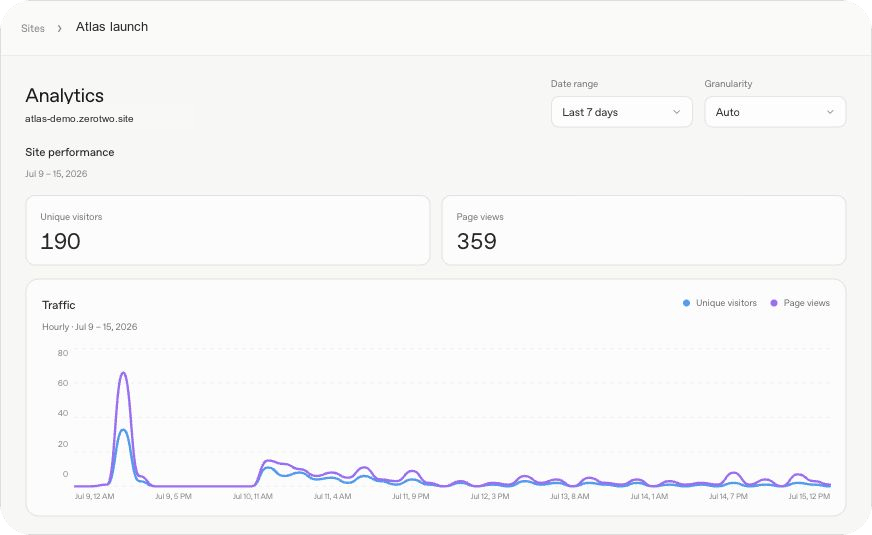
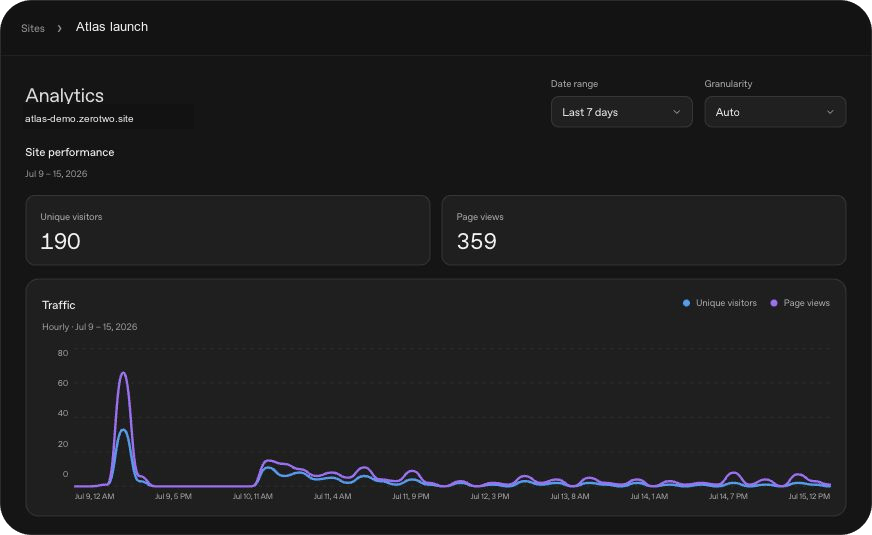
Sites records traffic automatically, so you can see how people use a deployed
Site without adding an analytics SDK. The analytics view shows total unique
visitors and page views, plus both metrics over time. Change the date range or
granularity to inspect a different period.
 Open **Sites**, find the Site, then select **More actions** > **Analytics**.
Go to [zerotwo.ai/sites](https://zerotwo.ai/sites), find the Site, then select
**More actions** > **Analytics**.
Sites doesn't have a standalone analytics view in the CLI or desktop app. Open
the Site in ZeroTwo on the web or in the desktop app to review its analytics.
Analytics is currently available for Sites that aren't owned by an Enterprise
workspace.
## Add Sign in with ZeroTwo
Public Sites can remain open to everyone while offering optional Sign in with
ZeroTwo for identity-aware features, such as saved progress, personalized views,
or records that belong to a specific person. Workspace-restricted Sites already
use ZeroTwo identity to enforce their sharing settings.
Ask Sites to add the sign-in experience:
```text theme={null}
Add Sign in with ZeroTwo to this public Site. Keep the Site available to signed-out visitors. Show a Sign in with ZeroTwo action when someone is signed out. After they sign in, greet them with their full name when available, or their email address otherwise. Add a Sign out action, and keep authorization decisions in server-side code.
```
Sites handles the sign-in and sign-out flows through platform-provided paths,
then returns the visitor to your Site:
```html theme={null}
Sign in with ZeroTwo
Sign out
```
After a visitor signs in, Sites forwards their identity to the server through
these request headers:
* `oai-authenticated-user-email` contains the authenticated email address.
* `oai-authenticated-user-full-name` may contain a non-empty profile name. Treat
it as optional and fall back to the email address.
Keep authorization decisions in server-side code, and don't depend on
name-split headers.
## Understand projects, versions, and deployments
A Site is a persistent hosted output that you can reopen, refine, configure,
and share from **Sites** in ZeroTwo.
A Sites project links a local source project to hosting managed through Sites.
Sites stores that linkage and optional storage binding names in
`.openai/hosting.json`. A newly created local starter can begin without a
`project_id`; Sites adds one after it provisions the hosted project.
For example, a provisioned site that uses a relational database binding and no
file storage can contain:
```json theme={null}
{
"project_id": "<project-id>",
"d1": "DB",
"r2": null
}
```
A Site appears in your Sites list even after the ZeroTwo Work chat that created it ends.
You don't need a local project or manifest to start a Site on the web. A Site is
separate from a ZeroTwo Project.
Sites publishing has two separate stages:
1. **Save a version.** ZeroTwo builds a deployable version. For a local source
project, ZeroTwo associates the version with the Git commit used for the
build. Use this stage when you want a reviewable deployment candidate.
2. **Deploy a version.** ZeroTwo publishes a saved version and reports the
production URL when deployment succeeds. Use this only when you intend for
the selected audience to access the site.
Ask ZeroTwo to list or inspect saved versions when you need to identify a
previous deployment candidate.
## Choose a supported site shape
For new projects, the Sites workflow can start with its recommended Site
starter. For an existing project, ask ZeroTwo to confirm that the project can
produce compatible deployment artifacts before you request a deployment.
Tell ZeroTwo about the product behavior you need so it can select the appropriate
site shape:
| Site need | What to ask Sites for |
| -------------------------------------------------------------- | ----------------------------------------------------------------------------- |
| Content-led website or landing page | A Site with no persistent application state unless the experience requires it |
| Saved records, user progress, or game scores | D1, a relational database for durable structured data |
| Images, documents, audio, video, or other uploads | R2, object storage for files |
| Uploaded files with searchable metadata | D1 for metadata and R2 for file contents |
| Internal site that needs the current workspace user's identity | Workspace-authenticated user identity |
| Public sign-in or an external identity provider | An authentication-enabled Site |
Don't request durable storage for temporary presentation state, such as a
theme choice or a dismissed banner. Do request it for product data that people
expect the hosted site to remember.
## Control access and secrets
A new Site is limited to its owner and workspace admins until you change its
access. Keep access limited while you review the content, data handling, and
expected audience.
Depending on your account and workspace settings, sharing options can include:
* **Owner and workspace admins**
* **Selected active users or groups**, where supported
* **Anyone in the workspace**, where supported
* **Anyone on the internet**, only when public publishing is enabled
Sharing lets people visit the Site; it doesn't let them edit it. In Enterprise
workspaces, public publishing is off by default and must be enabled by an admin.
For limited sharing, invited visitors must sign in with the account that
received access. A public Site is available without ZeroTwo workspace access. A
Site's audience setting and any sign-in feature built into the Site are separate
controls.
For example:
```text theme={null}
Change this Site's access to everyone in my workspace after showing me the
current Site and confirming its URL.
```
### Configure runtime environment values
Open **Sites**, then open the Site's settings to add, update, or remove hosted
environment variables and secrets. Keep secret values out of prompts, attached
files, and Site content.
Go to [zerotwo.ai/sites](https://zerotwo.ai/sites), find the Site, then select
**More actions** > **Settings**.
Don't store these values in `.openai/hosting.json`. Keep local `.env` and
`.env.example` files aligned with the keys needed for local development, and
don't commit secret values.
When you add, update, or remove hosted environment values, ask ZeroTwo to
redeploy the approved saved version so the next deployment uses the updated
configuration.
## Connect a custom domain
Where custom domains are available, you can connect an apex domain or subdomain
that you already own. Sites doesn't register domains for you, so you must be
able to change the domain's DNS records. Custom domains aren't available in
Enterprise workspaces at launch.
To connect a domain:
1. Open the Site's settings and select **Add domain**.
2. Enter the apex domain or subdomain you want to use.
3. Copy the DNS records and values Sites provides, then add them through your
domain provider.
4. Wait a few minutes, then return to the Site's settings and refresh the domain
status.
You can also ask ZeroTwo to help point the domain at your Site. If browsing or
computer use is enabled, ZeroTwo can help you navigate your domain provider
after you sign in.
## Review before you share
Before you share a Site:
* Review its content, generated text and images, links, uploaded files, forms,
and interactive behavior.
* Confirm that it doesn't expose confidential or sensitive information, secret
values, or third-party content you don't have the right to share.
* Test the Site from the intended visitor experience, including its access and
sign-in behavior.
* Review features that collect personal information or other visitor content.
Decide whether the Site should collect, share, or publish that information.
* If the Site uses Sign in with ZeroTwo, explain what visitor information it
receives and how it uses that information.
* If the Site collects or processes personal data, comply with
[applicable privacy and data-protection laws](https://help.zerotwo.ai/en/articles/20001340).
* Choose the narrowest sharing option that fits the intended audience.
* Open the shared Site and confirm that the intended audience can visit it.
**ZeroTwo desktop app**
For a Site built from a local project, also review the source changes and any
database migrations in the ZeroCode [review pane](/code-review).
## Take down or delete a Site
To remove access without deleting a Site, open its sharing settings and restrict
access to yourself or selected people. Confirm that the previous audience can no
longer open it.
To permanently delete a Site:
1. Open **Sites** and locate the Site.
2. Select **Delete site** and follow the instructions in the prompt.
3. Enter the Site slug, then select **Permanently delete**.
Deleting a Site permanently removes it. You can't restore a deleted Site.
## Understand limits and unsupported uses
Sites hosts web experiences that run in the supported Sites runtime. Some
frameworks, private networks, databases, background services, and hosting
patterns aren't supported.
Sites doesn't support data residency or inference residency at launch. This
includes deployed Sites, Site code, D1 and R2 data and file storage, generated
artifacts, and logs.
Don't use Sites to process Protected Health Information or payment-card data;
target children under 13 or the applicable age of digital consent; enable
financial transactions; distribute malware; enable phishing; impersonate people
or organizations; or otherwise violate ZeroTwo policies. See
[Creating and managing ZeroTwo Sites](https://help.zerotwo.ai/en/articles/20001339)
for the current limits and policy links.
## Related documentation
* [ZeroTwo desktop app](/app) introduces app navigation, projects, and chats.
* [Review and ship changes](/code-review) explains how to inspect source
changes before publishing them.
* [Projects and chats](/projects) explains how folder and workspace
context carries across chats.
* [Review and ship changes](/code-review) explains the review workflow for
each ZeroCode client.
* [Sandboxing](/sandboxing) explains the local execution boundary.
* [Open Sites in ZeroTwo](https://zerotwo.ai/sites) to return to Sites you've
created.
* [Projects and chats](/projects) explains how to keep
related chats and source files together.
* [Work with files](/artifacts-viewer) explains how to review
generated files in ZeroTwo web.
Open **Sites**, find the Site, then select **More actions** > **Analytics**.
Go to [zerotwo.ai/sites](https://zerotwo.ai/sites), find the Site, then select
**More actions** > **Analytics**.
Sites doesn't have a standalone analytics view in the CLI or desktop app. Open
the Site in ZeroTwo on the web or in the desktop app to review its analytics.
Analytics is currently available for Sites that aren't owned by an Enterprise
workspace.
## Add Sign in with ZeroTwo
Public Sites can remain open to everyone while offering optional Sign in with
ZeroTwo for identity-aware features, such as saved progress, personalized views,
or records that belong to a specific person. Workspace-restricted Sites already
use ZeroTwo identity to enforce their sharing settings.
Ask Sites to add the sign-in experience:
```text theme={null}
Add Sign in with ZeroTwo to this public Site. Keep the Site available to signed-out visitors. Show a Sign in with ZeroTwo action when someone is signed out. After they sign in, greet them with their full name when available, or their email address otherwise. Add a Sign out action, and keep authorization decisions in server-side code.
```
Sites handles the sign-in and sign-out flows through platform-provided paths,
then returns the visitor to your Site:
```html theme={null}
Sign in with ZeroTwo
Sign out
```
After a visitor signs in, Sites forwards their identity to the server through
these request headers:
* `oai-authenticated-user-email` contains the authenticated email address.
* `oai-authenticated-user-full-name` may contain a non-empty profile name. Treat
it as optional and fall back to the email address.
Keep authorization decisions in server-side code, and don't depend on
name-split headers.
## Understand projects, versions, and deployments
A Site is a persistent hosted output that you can reopen, refine, configure,
and share from **Sites** in ZeroTwo.
A Sites project links a local source project to hosting managed through Sites.
Sites stores that linkage and optional storage binding names in
`.openai/hosting.json`. A newly created local starter can begin without a
`project_id`; Sites adds one after it provisions the hosted project.
For example, a provisioned site that uses a relational database binding and no
file storage can contain:
```json theme={null}
{
"project_id": "<project-id>",
"d1": "DB",
"r2": null
}
```
A Site appears in your Sites list even after the ZeroTwo Work chat that created it ends.
You don't need a local project or manifest to start a Site on the web. A Site is
separate from a ZeroTwo Project.
Sites publishing has two separate stages:
1. **Save a version.** ZeroTwo builds a deployable version. For a local source
project, ZeroTwo associates the version with the Git commit used for the
build. Use this stage when you want a reviewable deployment candidate.
2. **Deploy a version.** ZeroTwo publishes a saved version and reports the
production URL when deployment succeeds. Use this only when you intend for
the selected audience to access the site.
Ask ZeroTwo to list or inspect saved versions when you need to identify a
previous deployment candidate.
## Choose a supported site shape
For new projects, the Sites workflow can start with its recommended Site
starter. For an existing project, ask ZeroTwo to confirm that the project can
produce compatible deployment artifacts before you request a deployment.
Tell ZeroTwo about the product behavior you need so it can select the appropriate
site shape:
| Site need | What to ask Sites for |
| -------------------------------------------------------------- | ----------------------------------------------------------------------------- |
| Content-led website or landing page | A Site with no persistent application state unless the experience requires it |
| Saved records, user progress, or game scores | D1, a relational database for durable structured data |
| Images, documents, audio, video, or other uploads | R2, object storage for files |
| Uploaded files with searchable metadata | D1 for metadata and R2 for file contents |
| Internal site that needs the current workspace user's identity | Workspace-authenticated user identity |
| Public sign-in or an external identity provider | An authentication-enabled Site |
Don't request durable storage for temporary presentation state, such as a
theme choice or a dismissed banner. Do request it for product data that people
expect the hosted site to remember.
## Control access and secrets
A new Site is limited to its owner and workspace admins until you change its
access. Keep access limited while you review the content, data handling, and
expected audience.
Depending on your account and workspace settings, sharing options can include:
* **Owner and workspace admins**
* **Selected active users or groups**, where supported
* **Anyone in the workspace**, where supported
* **Anyone on the internet**, only when public publishing is enabled
Sharing lets people visit the Site; it doesn't let them edit it. In Enterprise
workspaces, public publishing is off by default and must be enabled by an admin.
For limited sharing, invited visitors must sign in with the account that
received access. A public Site is available without ZeroTwo workspace access. A
Site's audience setting and any sign-in feature built into the Site are separate
controls.
For example:
```text theme={null}
Change this Site's access to everyone in my workspace after showing me the
current Site and confirming its URL.
```
### Configure runtime environment values
Open **Sites**, then open the Site's settings to add, update, or remove hosted
environment variables and secrets. Keep secret values out of prompts, attached
files, and Site content.
Go to [zerotwo.ai/sites](https://zerotwo.ai/sites), find the Site, then select
**More actions** > **Settings**.
Don't store these values in `.openai/hosting.json`. Keep local `.env` and
`.env.example` files aligned with the keys needed for local development, and
don't commit secret values.
When you add, update, or remove hosted environment values, ask ZeroTwo to
redeploy the approved saved version so the next deployment uses the updated
configuration.
## Connect a custom domain
Where custom domains are available, you can connect an apex domain or subdomain
that you already own. Sites doesn't register domains for you, so you must be
able to change the domain's DNS records. Custom domains aren't available in
Enterprise workspaces at launch.
To connect a domain:
1. Open the Site's settings and select **Add domain**.
2. Enter the apex domain or subdomain you want to use.
3. Copy the DNS records and values Sites provides, then add them through your
domain provider.
4. Wait a few minutes, then return to the Site's settings and refresh the domain
status.
You can also ask ZeroTwo to help point the domain at your Site. If browsing or
computer use is enabled, ZeroTwo can help you navigate your domain provider
after you sign in.
## Review before you share
Before you share a Site:
* Review its content, generated text and images, links, uploaded files, forms,
and interactive behavior.
* Confirm that it doesn't expose confidential or sensitive information, secret
values, or third-party content you don't have the right to share.
* Test the Site from the intended visitor experience, including its access and
sign-in behavior.
* Review features that collect personal information or other visitor content.
Decide whether the Site should collect, share, or publish that information.
* If the Site uses Sign in with ZeroTwo, explain what visitor information it
receives and how it uses that information.
* If the Site collects or processes personal data, comply with
[applicable privacy and data-protection laws](https://help.zerotwo.ai/en/articles/20001340).
* Choose the narrowest sharing option that fits the intended audience.
* Open the shared Site and confirm that the intended audience can visit it.
**ZeroTwo desktop app**
For a Site built from a local project, also review the source changes and any
database migrations in the ZeroCode [review pane](/code-review).
## Take down or delete a Site
To remove access without deleting a Site, open its sharing settings and restrict
access to yourself or selected people. Confirm that the previous audience can no
longer open it.
To permanently delete a Site:
1. Open **Sites** and locate the Site.
2. Select **Delete site** and follow the instructions in the prompt.
3. Enter the Site slug, then select **Permanently delete**.
Deleting a Site permanently removes it. You can't restore a deleted Site.
## Understand limits and unsupported uses
Sites hosts web experiences that run in the supported Sites runtime. Some
frameworks, private networks, databases, background services, and hosting
patterns aren't supported.
Sites doesn't support data residency or inference residency at launch. This
includes deployed Sites, Site code, D1 and R2 data and file storage, generated
artifacts, and logs.
Don't use Sites to process Protected Health Information or payment-card data;
target children under 13 or the applicable age of digital consent; enable
financial transactions; distribute malware; enable phishing; impersonate people
or organizations; or otherwise violate ZeroTwo policies. See
[Creating and managing ZeroTwo Sites](https://help.zerotwo.ai/en/articles/20001339)
for the current limits and policy links.
## Related documentation
* [ZeroTwo desktop app](/app) introduces app navigation, projects, and chats.
* [Review and ship changes](/code-review) explains how to inspect source
changes before publishing them.
* [Projects and chats](/projects) explains how folder and workspace
context carries across chats.
* [Review and ship changes](/code-review) explains the review workflow for
each ZeroCode client.
* [Sandboxing](/sandboxing) explains the local execution boundary.
* [Open Sites in ZeroTwo](https://zerotwo.ai/sites) to return to Sites you've
created.
* [Projects and chats](/projects) explains how to keep
related chats and source files together.
* [Work with files](/artifacts-viewer) explains how to review
generated files in ZeroTwo web.