> ## Documentation Index
> Fetch the complete documentation index at: https://docs.zerotwo.ai/llms.txt
> Use this file to discover all available pages before exploring further.
# Prompting
## Prompting overview
Prompting is how you tell ZeroTwo what you want to know, make, or change. A prompt
can be a question, an instruction, or a goal. You don't need technical syntax or
a rigid formula. Start in your own words, review the response, and use follow-up
messages to shape the result.
A short prompt is often enough. For larger or more important tasks, include the
parts that matter:
* **Goal:** What should ZeroTwo do?
* **Context:** What information or sources will help?
* **Output:** What format, length, or level of detail do you need?
* **Boundaries:** What must stay unchanged? What should ZeroTwo avoid or check
with you before it acts?
Use only the parts that help. You don't need to fill in every item or follow a
required format.
## Describe the result you need
Start with the result, not a detailed list of steps. Include the audience or
format when those details change what ZeroTwo should produce.
```text theme={null}
Turn these meeting notes into a short update for the project team.
Put the decisions and next steps first.
```
This prompt explains what to create and who will read it. Describe a process when
the process itself matters. Otherwise, leave ZeroTwo room to search, compare
information, and adjust its approach.
## Add useful context
Share the information that could change the result. Add only the sources that
matter, and explain what ZeroTwo should take from each one.
* Attach documents, spreadsheets, presentations, or PDF files when you want
ZeroTwo to summarize, compare, transform, or [create files for review](/artifacts-viewer).
* Add a screenshot, diagram, or other [image input](/image-inputs) when the
task depends on visual context. Point out the area that matters instead of
relying on the image alone.
* Ask ZeroTwo to use [web search](/web-search) when the answer depends on
current information, and ask for sources when you need to check the result.
* Use a [project](/projects) when related chats should share files,
sources, or a local folder.
### Use connected sources
When ZeroTwo has access to connected sources, name where it should look and what
it should find. You don't need to describe every search it should run.
```text theme={null}
Use the latest project plan in Drive and relevant decisions and updates from
the project's Slack channel to prepare a status update.
```
Connected sources require the matching plugin, and availability can depend on
your plan and workspace settings.
### Use plugins
Plugins give ZeroTwo and ZeroCode reusable instructions and connections to tools
such as Google Drive, Gmail, Slack, and GitHub. Both products draw public
plugins from the same universal directory. Ask for the result you need and let
the active surface choose from the tools available to it. In ZeroTwo, type `@`
in the composer to choose a specific plugin.
### Personalize ZeroTwo
Put preferences that should apply across chats in **Settings > Personalization**
as custom instructions. Keep details that matter only to the current chat in the
prompt.
## Set boundaries that prevent real problems
Boundaries are the few instructions ZeroTwo needs to avoid creating extra work
or taking an action you didn't intend. Add one when changing the wrong detail
would make the result unusable, or when you want to review something before it
affects other people.
* Keep the approved dates and budget figures unchanged.
* Use only the supplied sources. Flag missing information instead of guessing.
* Keep recommendations within the stated budget.
* Prepare the message as a draft. Don't send it.
Focus on the one or two boundaries that matter most. You don't need to control
every step ZeroTwo takes.
## Make the result ready to use
Tell ZeroTwo how you plan to use the result. This helps it choose the right
length, level of detail, and organization.
* Make this a one-page summary a director can scan before the meeting. Put the
decision and next steps first.
* Turn these notes into a follow-up email with the decisions, owners, and due
dates.
* Create a clear table of planned versus actual spending and highlight any
difference over 10%.
For important work, ask ZeroTwo for a final check, such as confirming every
action item has an owner and due date or flagging information it couldn't
verify. Then review the result yourself before you use or share it.
## Improve the result with follow-up messages
Your first prompt doesn't need to be perfect. Review the result, then ask for
the specific change you want.
```text theme={null}
Make the opening more direct, keep the evidence, and move the recommendation
above the background section.
```
You can add a missing source, correct the direction, ask for another option, or
change the level of detail without starting over.
### Steering and queuing
When ZeroCode is already working, you can send another message without waiting for
the current run to finish:
* **Steer** adds the message to the current run. Use it to change direction, add
a missing detail, or share new information.
* **Queue** saves the message for the next run. Use it for a follow-up that should
wait until the current work finishes.
In the ZeroTwo desktop app, choose the default under
[**Settings > General > Follow-up behavior**](/reference/settings#general).
Queued messages appear above the composer, where you can edit, reorder, send, or
delete them. The setting also shows the shortcut for using the other behavior
for one message without changing your default.
In ZeroTwo desktop app, press Enter while ZeroCode is working to steer the current
turn, or press Tab to queue the message for the next turn. See the
[interactive shortcuts](/developer-commands#cli-interactive-shortcuts)
for details.
## Put the pieces together
For a project update that uses connected sources, a complete prompt might look
like this:
```text theme={null}
Prepare a one-page project status update for Monday's leadership meeting. Use
the latest project plan in Drive and relevant decisions and updates from the
project's Slack channel.
Lead with the decisions leadership needs to make and the next steps. Summarize
progress, risks, owners, and due dates. Keep approved dates and budget figures
unchanged. Flag any conflicting or missing information, and don't send or
publish anything.
Before you finish, check that every next step has an owner and due date.
```
This prompt covers the **Goal**, **Context**, **Output**, and **Boundaries**, then
asks for a final check without spelling out every step.
## Use voice dictation
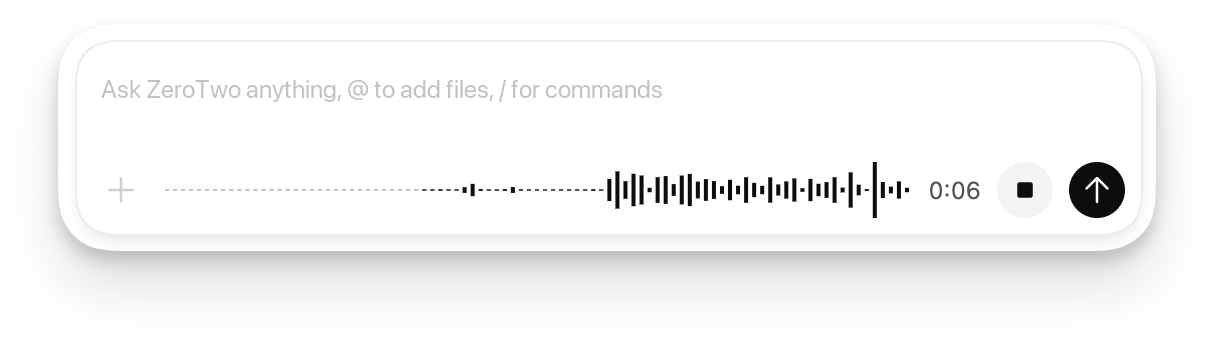
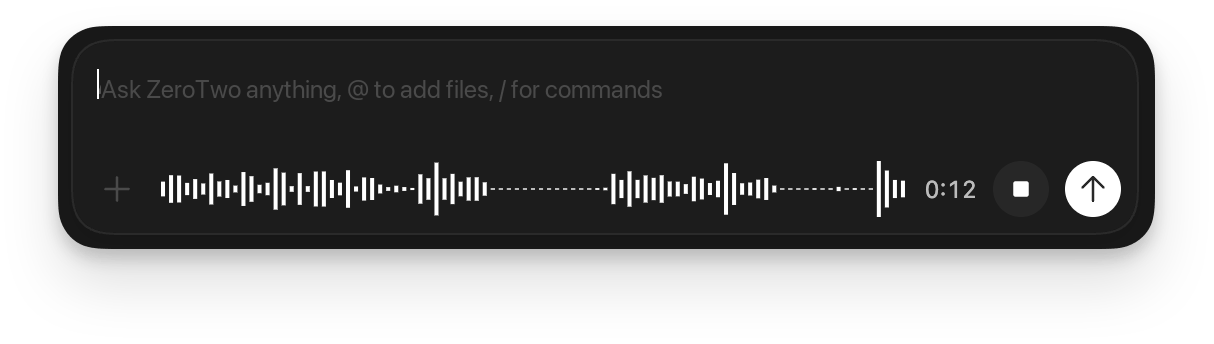
In the ZeroTwo desktop app, hold Ctrl+M while the composer is
visible, then start talking. ZeroTwo transcribes your speech into the composer so
you can review and edit it before sending the prompt.
 ## Prompting examples for Chat
Use Chat for questions, ideas, drafts, and everyday decisions. Start with the
outcome you want, then add detail only when it changes the answer.
### Understand a topic
```text theme={null}
Explain how compound interest works for someone who has never invested.
Use one concrete example and define any financial terms you introduce.
```
### Draft and refine writing
```text theme={null}
Draft a friendly email declining this invitation because I will be traveling.
Keep it under 120 words and leave the door open for a future event.
```
### Compare options
```text theme={null}
Compare these two phone plans for one person who travels internationally twice
a year. Show the important differences in a table, then recommend one and explain
the tradeoff.
```
### Make a practical plan
```text theme={null}
Plan five weekday dinners that take less than 30 minutes. Avoid peanuts, reuse
ingredients across meals, and finish with one consolidated shopping list.
```
## Prompting for ZeroTwo Work
Use Chat for quick questions, short rewrites, brainstorming, and lightweight
drafts. Use ZeroTwo Work for tasks that draw on different sources or tools, involve a
sequence of steps, make changes, or produce a larger deliverable.
In ZeroTwo Work, describe the result you need, provide the source material, name
the audience, and explain how you'll review the work. Ask ZeroTwo to plan,
gather the needed information, create files, and check them before it finishes.
### Use ZeroTwo Work efficiently
ZeroTwo Work is useful for time-consuming or recurring tasks, or for finished files you
can reuse. A task that uses more credits can still be worthwhile if it saves
time, improves quality, or helps you make an important decision.
Start with one result you can review:
* Include only relevant sources and limit the date range when appropriate.
* Define the audience, output format, and desired length.
* Separate required work from optional improvements or polish.
* Ask for a plan when the approach matters. Require your approval before ZeroTwo
sends, publishes, or changes information other people rely on.
* Narrow or stop the task if it starts doing work you no longer need.
Review the first result, refine the instructions, and reuse the workflow when
it works.
### Turn source material into finished files
```text theme={null}
Use the attached quarterly reports to create a leadership brief and a six-slide
presentation.
The audience is the executive team. Lead with the three decisions they need to
make, distinguish reported facts from your analysis, cite each number to its
source file, and check that the brief and slides agree before you finish.
```
### Research a decision
```text theme={null}
Research three customer-support platforms for a 50-person company. Compare
pricing, security, integrations, and migration effort using current sources.
Deliver a recommendation memo with links, assumptions, and the questions we
should answer before signing a contract.
```
### Coordinate a launch
```text theme={null}
Create a launch plan for the attached product brief. Include the timeline,
owners, dependencies, risks, announcement draft, customer FAQ, and a checklist
for launch day. Flag any missing decisions before producing the final files.
```
For recurring work, first refine the prompt in a normal chat. After the output is
reliable, [schedule a task inside that chat](/automations#schedule-a-task-inside-a-chat).
Create a standalone scheduled task instead when each scheduled run should start
a new chat.
## Prompting ZeroCode
Use ZeroCode when you want ZeroTwo to work with code, a codebase, or developer tools.
A useful ZeroCode prompt names the behavior you want, points to the relevant code or
reproduction steps, preserves important constraints, and says how to verify the
change.
For a multi-step task, enter `/plan` in the app composer when you want ZeroCode to
investigate and propose an approach before editing. When [Goal mode](/long-running-work)
is available, use `/goal` after the plan to set a persistent goal. See the [app slash
commands](/reference/slash-commands)
for the current command list.
### How to read these examples
Each workflow includes:
* **When to use it** and which ZeroCode surface fits best (IDE, CLI, or cloud).
* **Steps** with example user prompts.
* **Context notes**: what ZeroCode automatically sees vs what you should attach.
* **Verification**: how to check the output.
> **Note:** The desktop app automatically includes your open files as context. In the CLI, mention paths explicitly, or attach files with `/mention` and `@` path autocomplete.
ZeroCode runs local commands inside a [sandbox](/sandboxing)
that limits file and network access. If a task needs to cross that boundary,
ZeroCode follows your approval policy before continuing.
### Explain a codebase
Use this when you are onboarding, inheriting a service, or trying to reason about a protocol, data model, or request flow.
#### desktop app workflow (fastest for local exploration)
```text theme={null}
Explain how the request flows through the selected code.
Include:
- a short summary of the responsibilities of each module involved
- what data is validated and where
- one or two "gotchas" to watch for when changing this
```
Verification:
* Ask for a diagram or checklist you can verify:
```text theme={null}
Summarize the request flow as a numbered list of steps. Then list the files involved.
```
### Fix a bug
Use this when you have a failing behavior you can reproduce locally.
### desktop app workflow
```text theme={null}
Find the bug causing "Saved" to show without persisting changes. After proposing the fix, tell me how to verify it in the UI.
```
### Write a test
Use this when you want to define the exact scope to test.
#### desktop app workflow (selection-based)
```text theme={null}
Write a unit test for this function. Follow conventions used in other tests.
```
Context notes:
* Supplied by "Add to ZeroCode Thread" command: the selected lines (this is the "line number" scope), plus open files.
### Prototype from a screenshot
Use this when you want to turn a design mock, screenshot, or UI reference into a working prototype.
### desktop app workflow (image + existing files)
```text theme={null}
Create a new settings page. Use the attached screenshot as the target UI.
Follow design and visual patterns from other files in this project.
```
### Iterate on UI with live updates
Use this when you want a tight "design → tweak → refresh → tweak" loop while ZeroCode edits code.
### Delegate refactor to the cloud
Use this when you want to design an approach with local context, then delegate the long implementation to a cloud chat that can run in parallel.
#### Local planning (IDE)
```text theme={null}
$plan
We need to refactor the auth subsystem to:
- split responsibilities (token parsing vs session loading vs permissions)
- reduce circular imports
- improve testability
Constraints:
- No user-visible behavior changes
- Keep public APIs stable
- Include a step-by-step migration plan
```
```text theme={null}
Revise the plan to:
- specify exactly which files move in each milestone
- include a rollback strategy
```
Context notes:
* Planning works best when ZeroCode can scan the current code locally (entrypoints, module boundaries, dependency graph hints).
#### Cloud delegation (IDE → Cloud)
```text theme={null}
Implement Milestone 1 from the plan.
```
Tasks delegated to the cloud run in isolated environments. Internet access is
off during the agent phase unless you enable it for the environment. Learn more
about [cloud internet access](/cloud/internet-access).
### Do a local code review
Use this when you want a second set of eyes before committing or creating a PR.
### Review a GitHub pull request
Use this when you want review feedback without pulling the branch locally.
Before you can use this, enable ZeroCode **Code review** on your repository. See [Code review](/extend/mcp).
#### GitHub workflow (comment-driven)
```text theme={null}
@zerocode review
```
```text theme={null}
@zerocode review for security vulnerabilities and security concerns
```
### Update documentation
Use this when you need an accurate, clear documentation change.
#### IDE or CLI workflow (local edits + local validation)
```text theme={null}
Update the "advanced features" documentation to provide authentication troubleshooting guidance. Verify that all links are valid.
```
Verification:
* Read the rendered page.
## Prompting examples for Chat
Use Chat for questions, ideas, drafts, and everyday decisions. Start with the
outcome you want, then add detail only when it changes the answer.
### Understand a topic
```text theme={null}
Explain how compound interest works for someone who has never invested.
Use one concrete example and define any financial terms you introduce.
```
### Draft and refine writing
```text theme={null}
Draft a friendly email declining this invitation because I will be traveling.
Keep it under 120 words and leave the door open for a future event.
```
### Compare options
```text theme={null}
Compare these two phone plans for one person who travels internationally twice
a year. Show the important differences in a table, then recommend one and explain
the tradeoff.
```
### Make a practical plan
```text theme={null}
Plan five weekday dinners that take less than 30 minutes. Avoid peanuts, reuse
ingredients across meals, and finish with one consolidated shopping list.
```
## Prompting for ZeroTwo Work
Use Chat for quick questions, short rewrites, brainstorming, and lightweight
drafts. Use ZeroTwo Work for tasks that draw on different sources or tools, involve a
sequence of steps, make changes, or produce a larger deliverable.
In ZeroTwo Work, describe the result you need, provide the source material, name
the audience, and explain how you'll review the work. Ask ZeroTwo to plan,
gather the needed information, create files, and check them before it finishes.
### Use ZeroTwo Work efficiently
ZeroTwo Work is useful for time-consuming or recurring tasks, or for finished files you
can reuse. A task that uses more credits can still be worthwhile if it saves
time, improves quality, or helps you make an important decision.
Start with one result you can review:
* Include only relevant sources and limit the date range when appropriate.
* Define the audience, output format, and desired length.
* Separate required work from optional improvements or polish.
* Ask for a plan when the approach matters. Require your approval before ZeroTwo
sends, publishes, or changes information other people rely on.
* Narrow or stop the task if it starts doing work you no longer need.
Review the first result, refine the instructions, and reuse the workflow when
it works.
### Turn source material into finished files
```text theme={null}
Use the attached quarterly reports to create a leadership brief and a six-slide
presentation.
The audience is the executive team. Lead with the three decisions they need to
make, distinguish reported facts from your analysis, cite each number to its
source file, and check that the brief and slides agree before you finish.
```
### Research a decision
```text theme={null}
Research three customer-support platforms for a 50-person company. Compare
pricing, security, integrations, and migration effort using current sources.
Deliver a recommendation memo with links, assumptions, and the questions we
should answer before signing a contract.
```
### Coordinate a launch
```text theme={null}
Create a launch plan for the attached product brief. Include the timeline,
owners, dependencies, risks, announcement draft, customer FAQ, and a checklist
for launch day. Flag any missing decisions before producing the final files.
```
For recurring work, first refine the prompt in a normal chat. After the output is
reliable, [schedule a task inside that chat](/automations#schedule-a-task-inside-a-chat).
Create a standalone scheduled task instead when each scheduled run should start
a new chat.
## Prompting ZeroCode
Use ZeroCode when you want ZeroTwo to work with code, a codebase, or developer tools.
A useful ZeroCode prompt names the behavior you want, points to the relevant code or
reproduction steps, preserves important constraints, and says how to verify the
change.
For a multi-step task, enter `/plan` in the app composer when you want ZeroCode to
investigate and propose an approach before editing. When [Goal mode](/long-running-work)
is available, use `/goal` after the plan to set a persistent goal. See the [app slash
commands](/reference/slash-commands)
for the current command list.
### How to read these examples
Each workflow includes:
* **When to use it** and which ZeroCode surface fits best (IDE, CLI, or cloud).
* **Steps** with example user prompts.
* **Context notes**: what ZeroCode automatically sees vs what you should attach.
* **Verification**: how to check the output.
> **Note:** The desktop app automatically includes your open files as context. In the CLI, mention paths explicitly, or attach files with `/mention` and `@` path autocomplete.
ZeroCode runs local commands inside a [sandbox](/sandboxing)
that limits file and network access. If a task needs to cross that boundary,
ZeroCode follows your approval policy before continuing.
### Explain a codebase
Use this when you are onboarding, inheriting a service, or trying to reason about a protocol, data model, or request flow.
#### desktop app workflow (fastest for local exploration)
```text theme={null}
Explain how the request flows through the selected code.
Include:
- a short summary of the responsibilities of each module involved
- what data is validated and where
- one or two "gotchas" to watch for when changing this
```
Verification:
* Ask for a diagram or checklist you can verify:
```text theme={null}
Summarize the request flow as a numbered list of steps. Then list the files involved.
```
### Fix a bug
Use this when you have a failing behavior you can reproduce locally.
### desktop app workflow
```text theme={null}
Find the bug causing "Saved" to show without persisting changes. After proposing the fix, tell me how to verify it in the UI.
```
### Write a test
Use this when you want to define the exact scope to test.
#### desktop app workflow (selection-based)
```text theme={null}
Write a unit test for this function. Follow conventions used in other tests.
```
Context notes:
* Supplied by "Add to ZeroCode Thread" command: the selected lines (this is the "line number" scope), plus open files.
### Prototype from a screenshot
Use this when you want to turn a design mock, screenshot, or UI reference into a working prototype.
### desktop app workflow (image + existing files)
```text theme={null}
Create a new settings page. Use the attached screenshot as the target UI.
Follow design and visual patterns from other files in this project.
```
### Iterate on UI with live updates
Use this when you want a tight "design → tweak → refresh → tweak" loop while ZeroCode edits code.
### Delegate refactor to the cloud
Use this when you want to design an approach with local context, then delegate the long implementation to a cloud chat that can run in parallel.
#### Local planning (IDE)
```text theme={null}
$plan
We need to refactor the auth subsystem to:
- split responsibilities (token parsing vs session loading vs permissions)
- reduce circular imports
- improve testability
Constraints:
- No user-visible behavior changes
- Keep public APIs stable
- Include a step-by-step migration plan
```
```text theme={null}
Revise the plan to:
- specify exactly which files move in each milestone
- include a rollback strategy
```
Context notes:
* Planning works best when ZeroCode can scan the current code locally (entrypoints, module boundaries, dependency graph hints).
#### Cloud delegation (IDE → Cloud)
```text theme={null}
Implement Milestone 1 from the plan.
```
Tasks delegated to the cloud run in isolated environments. Internet access is
off during the agent phase unless you enable it for the environment. Learn more
about [cloud internet access](/cloud/internet-access).
### Do a local code review
Use this when you want a second set of eyes before committing or creating a PR.
### Review a GitHub pull request
Use this when you want review feedback without pulling the branch locally.
Before you can use this, enable ZeroCode **Code review** on your repository. See [Code review](/extend/mcp).
#### GitHub workflow (comment-driven)
```text theme={null}
@zerocode review
```
```text theme={null}
@zerocode review for security vulnerabilities and security concerns
```
### Update documentation
Use this when you need an accurate, clear documentation change.
#### IDE or CLI workflow (local edits + local validation)
```text theme={null}
Update the "advanced features" documentation to provide authentication troubleshooting guidance. Verify that all links are valid.
```
Verification:
* Read the rendered page.