> ## Documentation Index
> Fetch the complete documentation index at: https://docs.zerotwo.ai/llms.txt
> Use this file to discover all available pages before exploring further.
# Plugins
## Overview
Plugins bundle capabilities into reusable workflows in ZeroTwo and ZeroCode. They
can include skills, connectors, or both. Both products use one universal plugin
directory, so the same public plugins are discoverable from their supported
surfaces.
Plugins are available with ZeroTwo Work on the web and with ZeroTwo Work or
ZeroCode in the ZeroTwo desktop app. ZeroCode
CLI also has a plugin browser for ZeroCode environments. Plugins aren't available
in Chat, the desktop app, or mobile.
In the ZeroTwo desktop app, select ZeroTwo and turn on Work in the switcher, or select
ZeroCode. Then open **Plugins** to browse, install, and use plugins. Installed
plugins can add skills, connectors, and MCP tools to new chats.
In ZeroTwo web, turn on Work in the switcher and open **Plugins** to browse, install, and
use plugins. A plugin can prompt you to connect an external service before its
tools become available.
In ZeroTwo desktop app, enter `/plugins` to open the plugin browser. Install a plugin from
a configured marketplace, then start a new session before using its bundled
skills or tools.
### Use plugins from a supported surface
Plugins aren't available in the desktop app. To browse and install plugins
for ZeroCode, use the ZeroTwo desktop app.
Extend what ZeroTwo and ZeroCode can do, for example:
* Install the ZeroCode Security plugin to scan authorized code and confirm
plausible vulnerability findings.
* Install the Gmail plugin to work with Gmail.
* Install the Google Drive plugin to work across Drive, Docs, Sheets, and
Slides.
* Install the Slack plugin to summarize channels or draft replies.
A plugin can contain one or more of these parts:
* **Skills:** reusable instructions for specific kinds of work. ZeroTwo and
ZeroCode can load them when needed so they follow the right steps and use the
right references or helper scripts for a task.
* **Connectors:** connections to tools like GitHub, Slack, or Google Drive, so
ZeroTwo and ZeroCode can read information from those tools and take actions in
them. Connectors expose tools and can optionally include custom UI.
* **MCP servers:** services that give ZeroTwo and ZeroCode access to more tools or
shared information, often from systems outside your local project. They're
also the services behind connectors. They define tools, enforce auth, return
structured data, and perform actions against external systems.
* **Browser extensions:** browser capabilities that a plugin needs for its
workflow.
* **Hooks:** commands that run at configured lifecycle points. Review and trust
plugin hooks before you enable them.
* **Scheduled task templates:** reusable starting points for recurring tasks
where scheduled tasks are available.
You can share plugins by publishing them through a marketplace source, such as a
repo marketplace for a project or team. See [Build plugins](https://developers.zerotwo.ai/plugins/build/plugins)
for marketplace setup, packaging, and distribution guidance.
If you are building an integration, start with
[Build an MCP server](https://developers.zerotwo.ai/plugins/build/mcp-server).
If the plugin needs custom UI, use the
[optional UI guide](https://developers.zerotwo.ai/plugins/build/chatgpt-ui).
## Use and install plugins
### Universal plugin directory
ZeroTwo and ZeroCode use the same public plugin catalog. To browse and install
plugins from a supported graphical surface:
* On the web, turn on Work in the switcher and open **Plugins**.
* In the ZeroTwo desktop app, select ZeroTwo and turn on Work in the switcher, or select
ZeroCode. Then open **Plugins**.
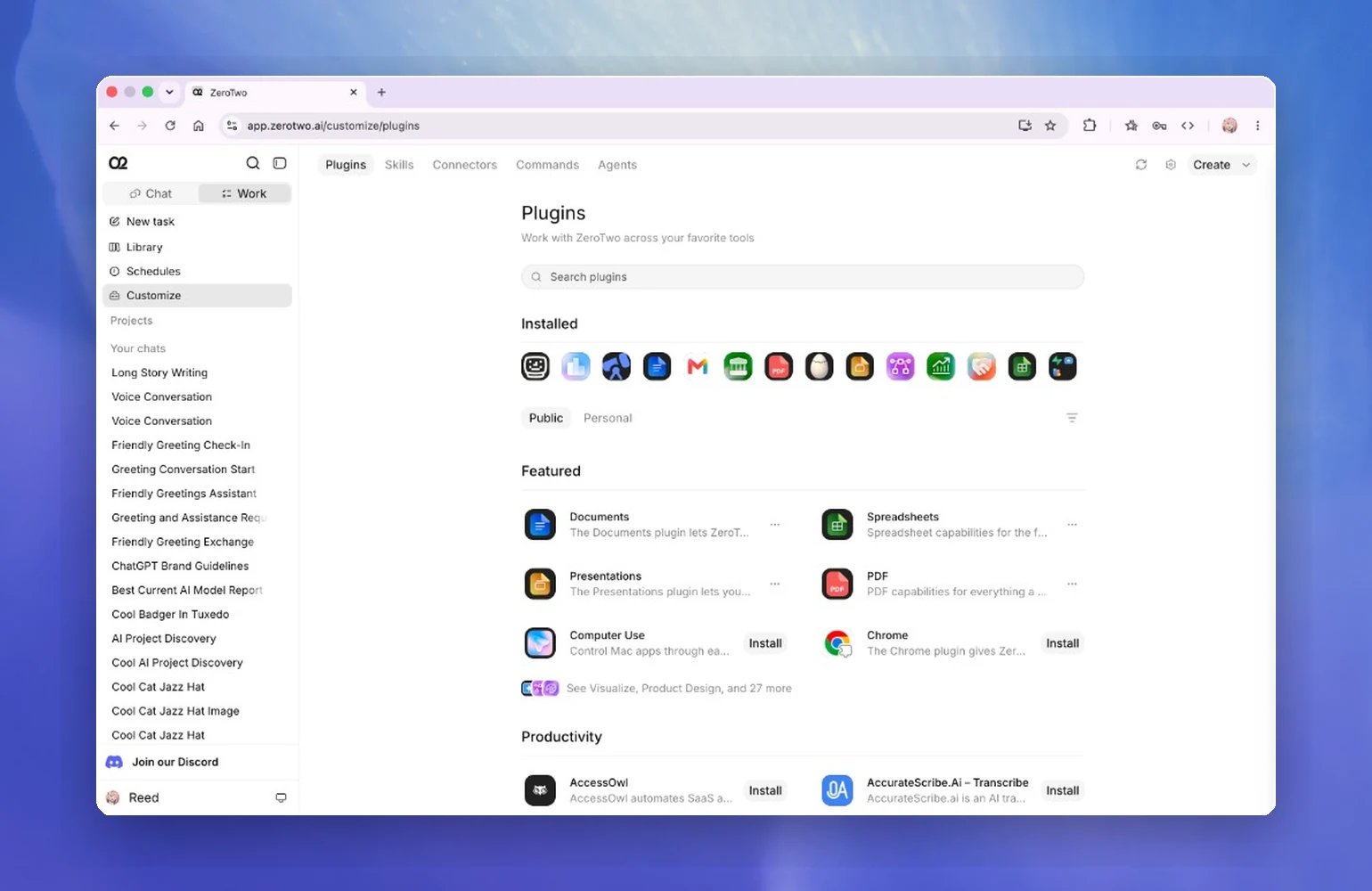 The Plugins Directory organizes plugins into tabs:
* **ZeroTwo:** plugins built by ZeroTwo.
* **Your workspace name:** plugins provided by your workspace.
* **Personal:** personal marketplace plugins, including **Created by me** and
**Shared with me** sections when those plugins are available.
Use the separate **Installed** row to review plugins you already installed.
### Install and use a plugin
Once you open the Plugins Directory:
ask you to authenticate during install. Others wait until the first time you
use them.
plugin.
### Connect supported partners with Sign in with ZeroTwo
**Sign in with ZeroTwo** is rolling out in beta for supported plugins and
partner sites, including Airtable, GitLab, HubSpot, Notion, Supabase, and
Vercel. When the option is available, select **Sign in with ZeroTwo** while
connecting the plugin to create or link your account with that service.
Signing in shares only your name, email address, and profile picture, when
available, with the partner. It doesn't grant the plugin access to your data or
approve actions automatically. Review and approve the plugin's requested
permissions as a separate step before using the connection.
After you install a plugin, you can use it directly in the prompt window:
The Plugins Directory organizes plugins into tabs:
* **ZeroTwo:** plugins built by ZeroTwo.
* **Your workspace name:** plugins provided by your workspace.
* **Personal:** personal marketplace plugins, including **Created by me** and
**Shared with me** sections when those plugins are available.
Use the separate **Installed** row to review plugins you already installed.
### Install and use a plugin
Once you open the Plugins Directory:
ask you to authenticate during install. Others wait until the first time you
use them.
plugin.
### Connect supported partners with Sign in with ZeroTwo
**Sign in with ZeroTwo** is rolling out in beta for supported plugins and
partner sites, including Airtable, GitLab, HubSpot, Notion, Supabase, and
Vercel. When the option is available, select **Sign in with ZeroTwo** while
connecting the plugin to create or link your account with that service.
Signing in shares only your name, email address, and profile picture, when
available, with the partner. It doesn't grant the plugin access to your data or
approve actions automatically. Review and approve the plugin's requested
permissions as a separate step before using the connection.
After you install a plugin, you can use it directly in the prompt window:
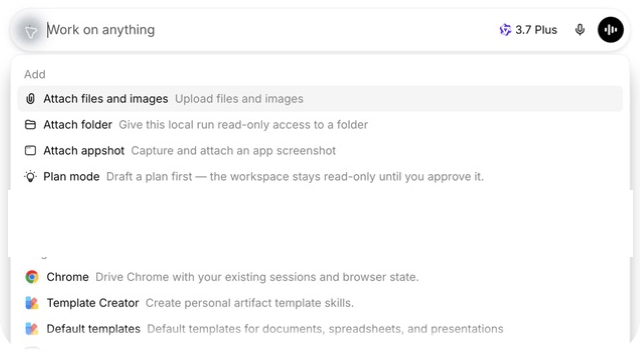
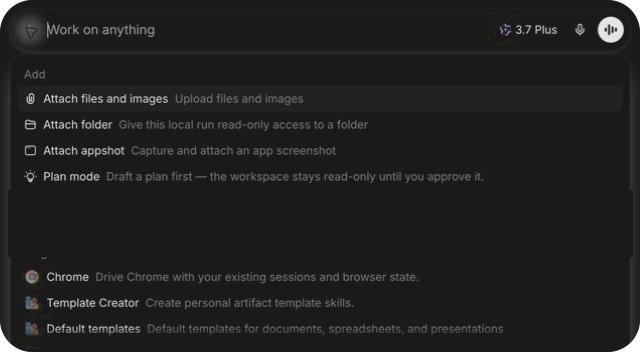 Describe the task directly
Ask for the outcome you want, such as "Summarize unread Gmail threads
from today" or "Pull the latest launch notes from Google Drive."
Use this when you want ZeroTwo to choose the right installed tools for the
task.
Choose a specific plugin
Type `@` to invoke the plugin or one of its bundled skills
explicitly.
Use this when you want to be specific about which plugin or skill ZeroTwo
should use. See [Skills & Plugins](/skills-and-plugins).
### Plugin browser in ZeroTwo desktop app
In ZeroTwo desktop app, run the following command to open the plugin browser:
```text theme={null}
zerocode
/plugins
```
Describe the task directly
Ask for the outcome you want, such as "Summarize unread Gmail threads
from today" or "Pull the latest launch notes from Google Drive."
Use this when you want ZeroTwo to choose the right installed tools for the
task.
Choose a specific plugin
Type `@` to invoke the plugin or one of its bundled skills
explicitly.
Use this when you want to be specific about which plugin or skill ZeroTwo
should use. See [Skills & Plugins](/skills-and-plugins).
### Plugin browser in ZeroTwo desktop app
In ZeroTwo desktop app, run the following command to open the plugin browser:
```text theme={null}
zerocode
/plugins
```
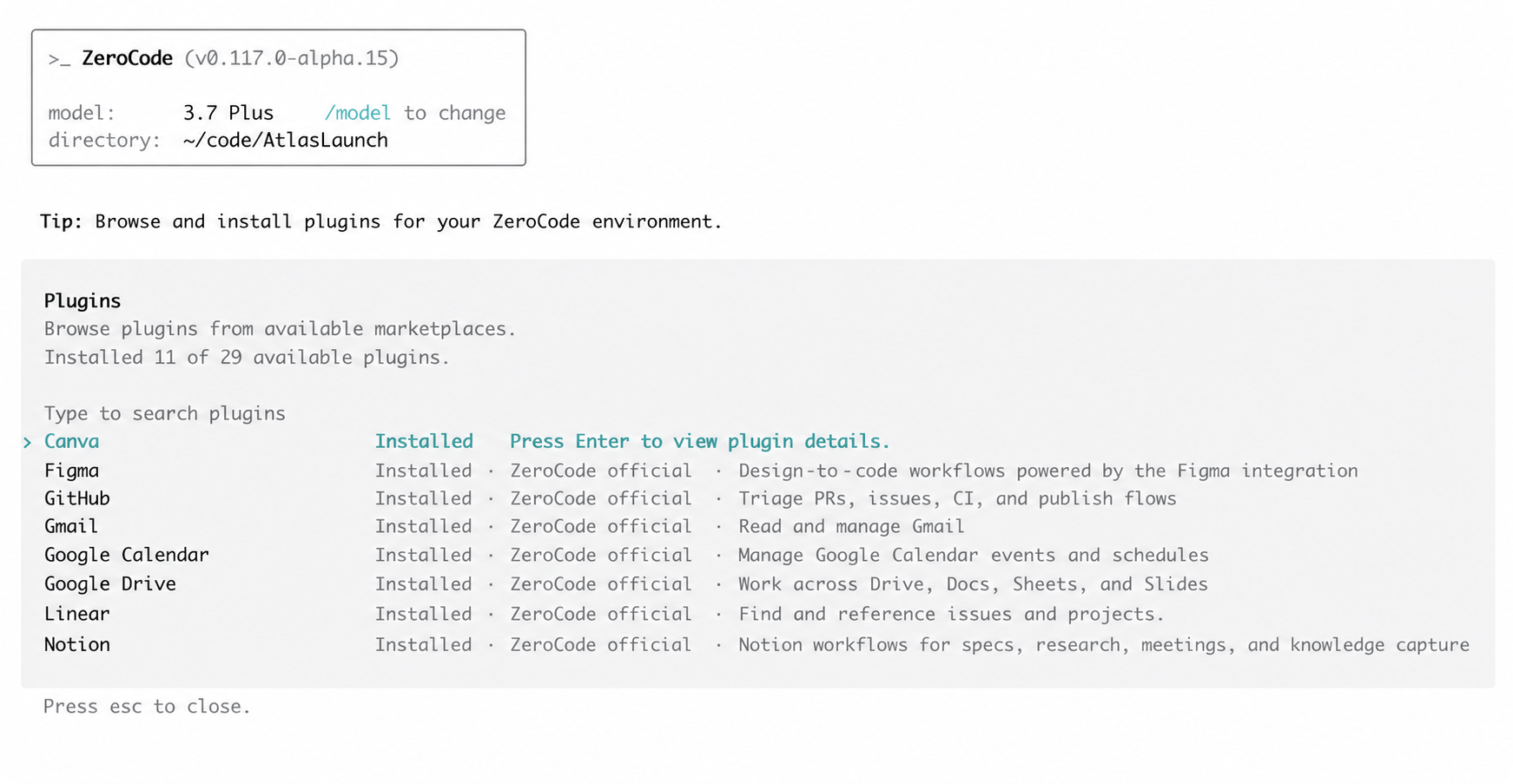
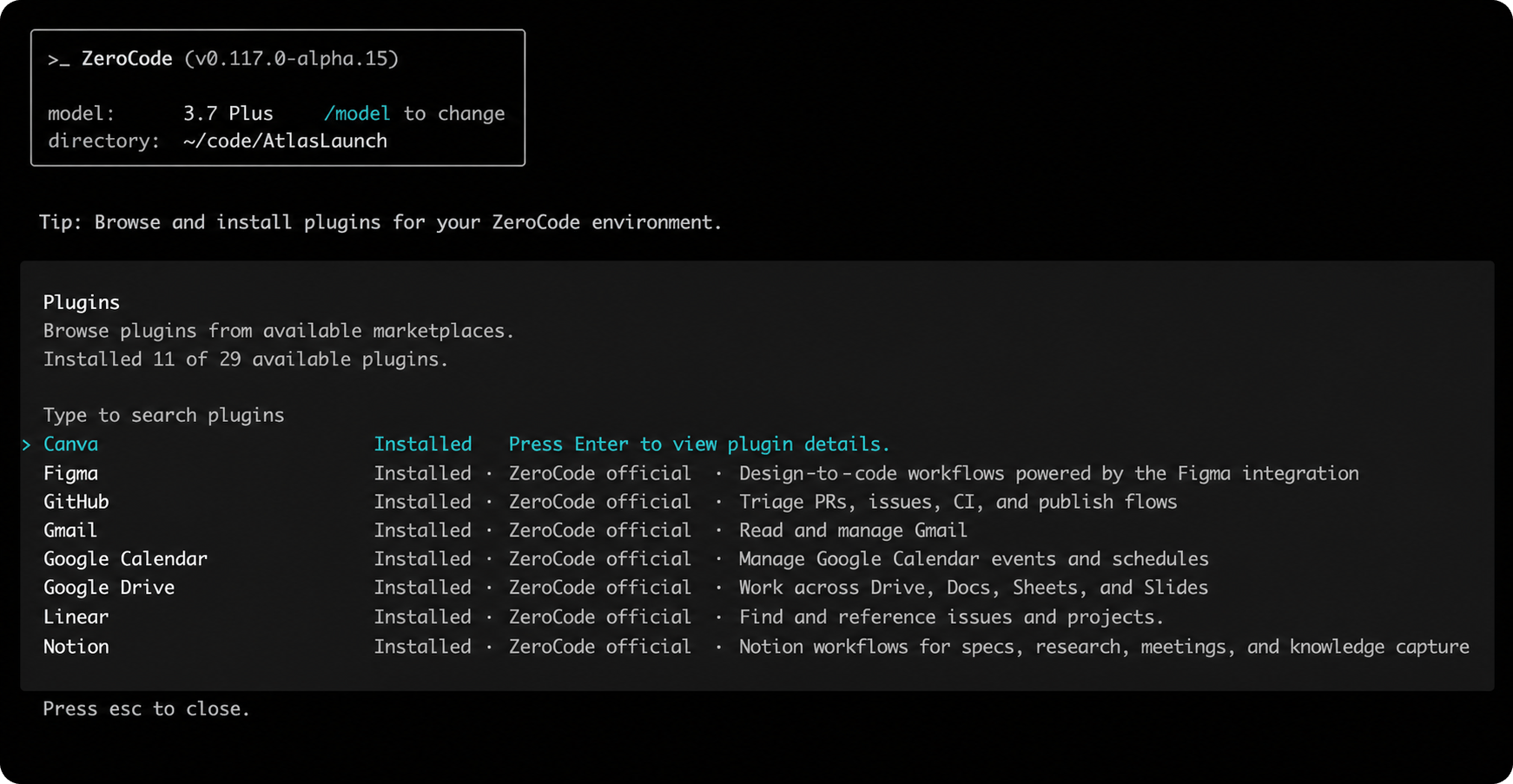 The CLI plugin browser groups plugins by marketplace. Use the marketplace tabs
to switch sources, open a plugin to inspect details, install or uninstall
marketplace entries, and press Space on an installed plugin to turn it
on or off.
***
### API key availability
If you [sign in to ZeroCode with a ZeroTwo API
key](/quickstart), you can browse, install, and manage
supported ZeroTwo-curated plugins in ZeroTwo desktop app and ZeroCode in the ZeroTwo desktop
app. Some plugins aren't available with API key authentication because their
connection flows require unsupported OAuth capabilities. Review plugin usage
on the [Platform Usage page](https://platform.zerotwo.ai/usage).
### How permissions and data sharing work
On ZeroTwo web, ZeroTwo Work chats use the workspace permissions and
tools available to that chat. Connectors still require their own sign-in
and access.
When a plugin capability runs through a ZeroCode host, the host's [sandbox and
approval policy](/agent-approvals-security) applies.
Connections to external services use that service's own authentication and
access controls.
* Bundled skills become available when you start a new chat or CLI session
after installation.
* If a plugin includes connectors, the active product may prompt you to install
or sign in to those connectors during setup or the first time you use them.
* If a plugin includes MCP servers, they may require extra setup or
authentication before you can use them.
* When ZeroTwo sends data through a bundled connector, that service's terms and privacy
policy apply.
### Remove a plugin
To remove a plugin, open it from a supported plugin browser and select
**Uninstall plugin** when that action is available. Workspace-installed or
default plugins may not offer that action; your workspace administrator controls
them instead.
Uninstalling a plugin removes the plugin bundle from that ZeroTwo or ZeroCode
environment, but bundled connectors stay connected until you manage them in
ZeroTwo.
## Build your own plugin
If you want to create, test, or distribute your own plugin, see
[Build plugins](https://developers.zerotwo.ai/plugins/build/plugins). That page covers local scaffolding,
manual marketplace setup, workspace sharing, plugin manifests, and packaging
guidance.
If your plugin includes server-backed capabilities, see
[Build an MCP server](https://developers.zerotwo.ai/plugins/build/mcp-server).
MCP tools can work without custom UI or return UI when a visual surface helps
the workflow.
When your plugin is ready for review, see
[Submit plugins](https://developers.zerotwo.ai/plugins/deploy/submission) for the ZeroTwo Platform submission
flow, required permissions, review materials, MCP checks, and test case
requirements.
## Plugin guides
* [Record & Replay](/extend/record-and-replay): Show ZeroTwo a workflow
once and turn it into a reusable skill.
* [ZeroCode Security plugin](/permissions): Scan authorized code,
confirm findings, and prepare reviewed fixes.
The CLI plugin browser groups plugins by marketplace. Use the marketplace tabs
to switch sources, open a plugin to inspect details, install or uninstall
marketplace entries, and press Space on an installed plugin to turn it
on or off.
***
### API key availability
If you [sign in to ZeroCode with a ZeroTwo API
key](/quickstart), you can browse, install, and manage
supported ZeroTwo-curated plugins in ZeroTwo desktop app and ZeroCode in the ZeroTwo desktop
app. Some plugins aren't available with API key authentication because their
connection flows require unsupported OAuth capabilities. Review plugin usage
on the [Platform Usage page](https://platform.zerotwo.ai/usage).
### How permissions and data sharing work
On ZeroTwo web, ZeroTwo Work chats use the workspace permissions and
tools available to that chat. Connectors still require their own sign-in
and access.
When a plugin capability runs through a ZeroCode host, the host's [sandbox and
approval policy](/agent-approvals-security) applies.
Connections to external services use that service's own authentication and
access controls.
* Bundled skills become available when you start a new chat or CLI session
after installation.
* If a plugin includes connectors, the active product may prompt you to install
or sign in to those connectors during setup or the first time you use them.
* If a plugin includes MCP servers, they may require extra setup or
authentication before you can use them.
* When ZeroTwo sends data through a bundled connector, that service's terms and privacy
policy apply.
### Remove a plugin
To remove a plugin, open it from a supported plugin browser and select
**Uninstall plugin** when that action is available. Workspace-installed or
default plugins may not offer that action; your workspace administrator controls
them instead.
Uninstalling a plugin removes the plugin bundle from that ZeroTwo or ZeroCode
environment, but bundled connectors stay connected until you manage them in
ZeroTwo.
## Build your own plugin
If you want to create, test, or distribute your own plugin, see
[Build plugins](https://developers.zerotwo.ai/plugins/build/plugins). That page covers local scaffolding,
manual marketplace setup, workspace sharing, plugin manifests, and packaging
guidance.
If your plugin includes server-backed capabilities, see
[Build an MCP server](https://developers.zerotwo.ai/plugins/build/mcp-server).
MCP tools can work without custom UI or return UI when a visual surface helps
the workflow.
When your plugin is ready for review, see
[Submit plugins](https://developers.zerotwo.ai/plugins/deploy/submission) for the ZeroTwo Platform submission
flow, required permissions, review materials, MCP checks, and test case
requirements.
## Plugin guides
* [Record & Replay](/extend/record-and-replay): Show ZeroTwo a workflow
once and turn it into a reusable skill.
* [ZeroCode Security plugin](/permissions): Scan authorized code,
confirm findings, and prepare reviewed fixes.