> ## Documentation Index
> Fetch the complete documentation index at: https://docs.zerotwo.ai/llms.txt
> Use this file to discover all available pages before exploring further.
# Work with files
When a task produces a file, give ZeroTwo the source data, expected file type,
structure, and review criteria that matter for the task. The preview and review
tools depend on the surface you use.
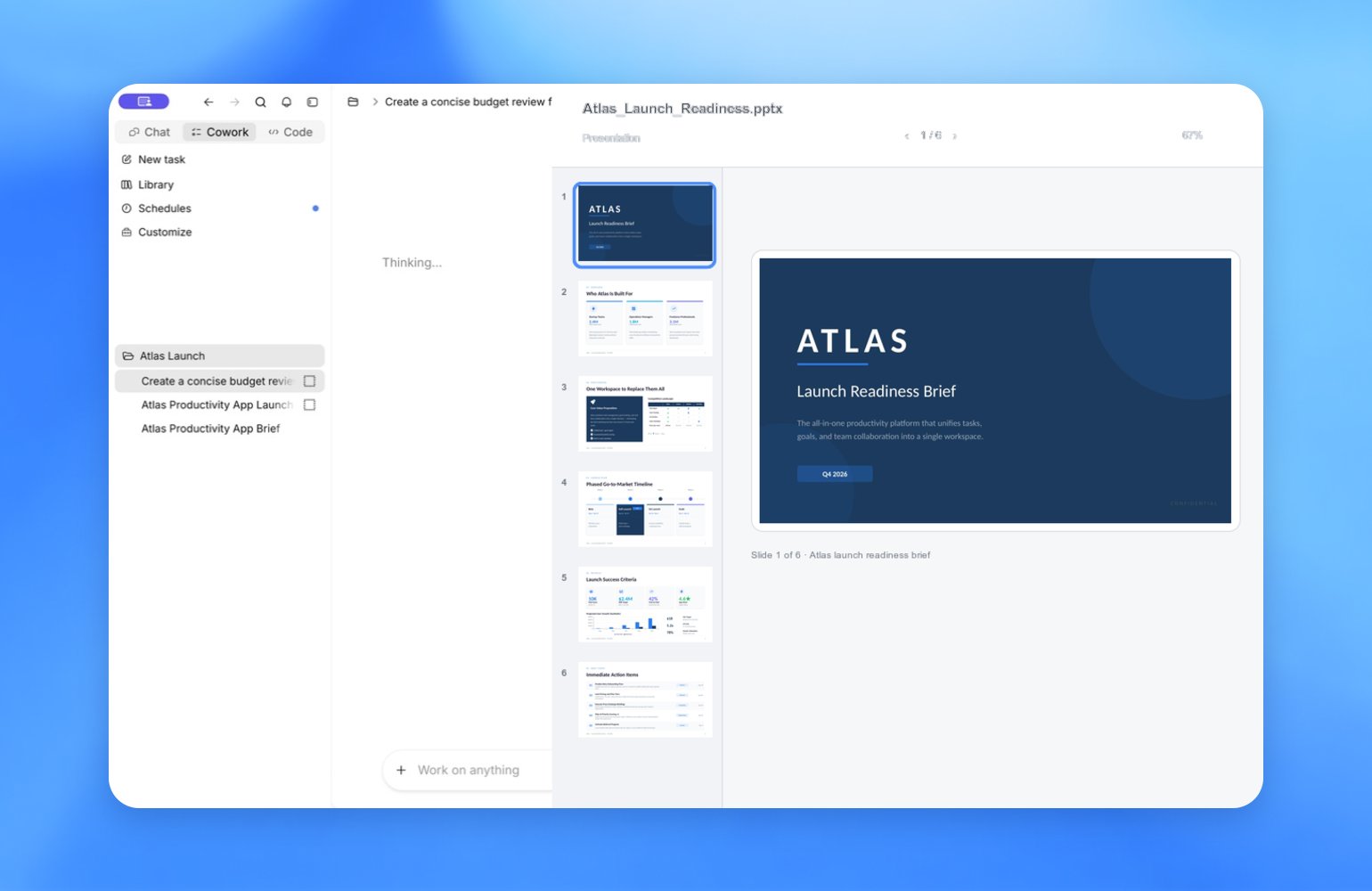
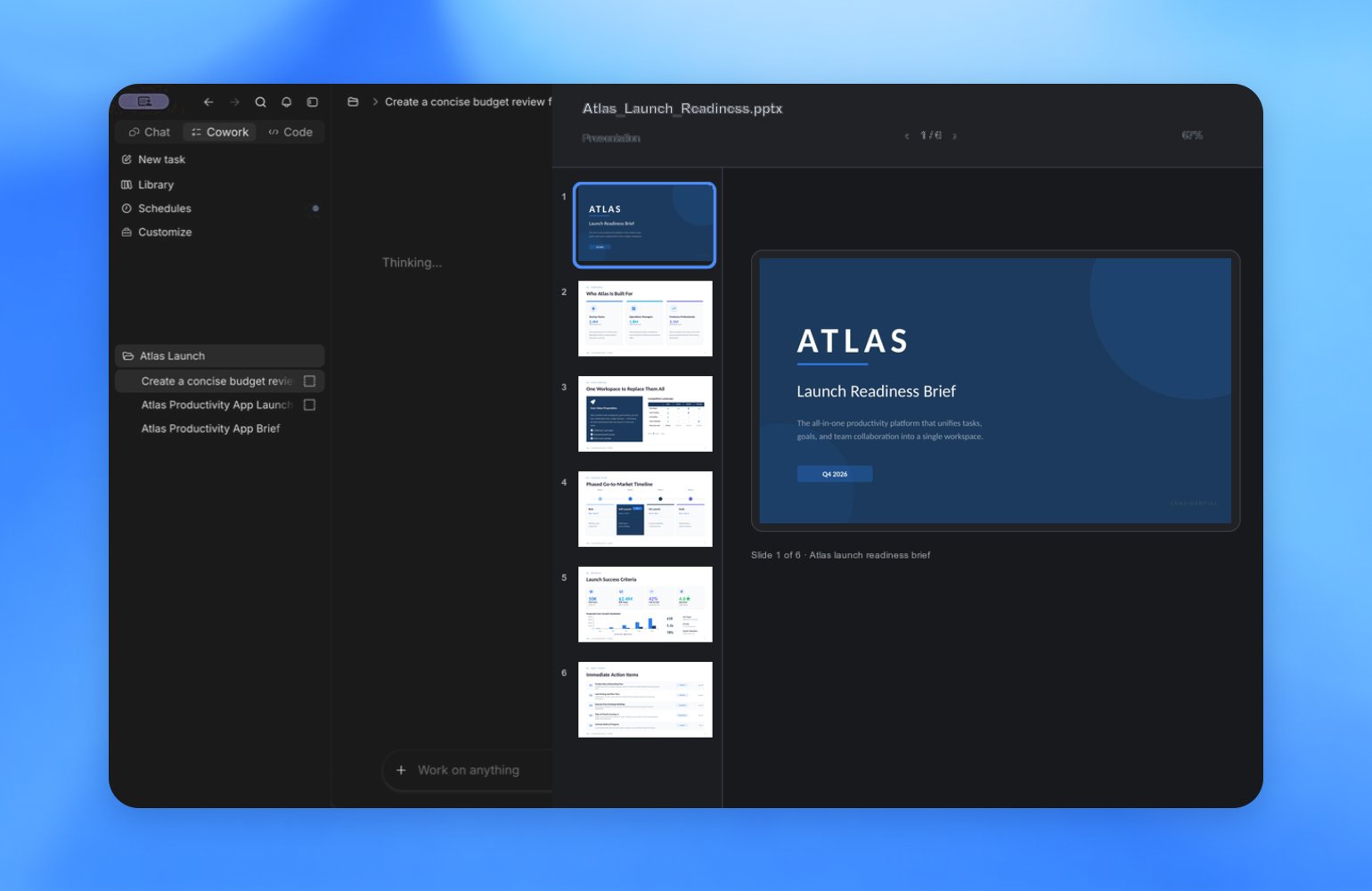
The ZeroTwo desktop app previews generated documents, presentations,
spreadsheets, and PDF files alongside the chat. When automatic previews are
enabled, the app can open a generated file after a task finishes.
When HTML previews are available, generated `.html` and `.htm` files can also
open as interactive previews. Switch between the rendered preview and source
view to inspect the output or its underlying HTML.
Use annotations to point at a specific part of a supported preview and request
a focused revision.
In ZeroTwo Work on the web, attach source files or ask ZeroTwo to create a
document, presentation, spreadsheet, or PDF. Review the generated file in the
chat, download it when needed, and give targeted feedback for the next version.
ZeroTwo desktop app can create and edit files in the working directory, but it doesn't
include a visual file preview or annotation interface. Ask ZeroCode to report each
output path and the checks it ran.
The desktop app can create and edit files in the workspace. Review text and
code files in the editor, and open documents, presentations, spreadsheets, or
PDF files in a compatible viewer.
 ## Create files for review
For spreadsheets and presentations, describe the sheets, columns, charts,
slide sections, and checks you expect. Ask ZeroTwo to explain where it saved the
output and how it checked the result.
## Refine files with annotations
Annotations let you point to a specific part of a file and tell ZeroTwo
what to change. The same annotation workflow available for code, Markdown
files, and websites also works with documents, spreadsheets, and
presentations.
For example, you can:
* Select a navigation bar on a website and ask ZeroTwo to change its font.
* Highlight a claim in an investment thesis and ask for its source.
* Mark a chart on a slide and request a clearer label.
ZeroTwo uses the selected area as context for your request, so you can refine
the file without starting over or changing the parts you already like.
Annotations are particularly useful after the first draft, when the work needs
review and iteration.
## Review and refine files on the web
Open or download the generated file to review it in the appropriate viewer.
When you request a revision, name the page, slide, sheet, table, or passage that
needs attention and describe what should stay unchanged. Ask ZeroTwo to report
the new file name and the checks it performed before you download the next
version.
## Review and refine files
Use the chat sidebar while a task runs. It can surface the agent's plan,
sources, generated files, and chat summary so you can steer the work,
inspect generated files, and request another pass.
Ask ZeroTwo to explain where it saved each file and how it verified the
result. Use the preview to inspect the output, then give focused feedback about
the structure, data, layout, or validation that needs another pass.
## Related docs
* [Image generation](/image-generation)
## Create files for review
For spreadsheets and presentations, describe the sheets, columns, charts,
slide sections, and checks you expect. Ask ZeroTwo to explain where it saved the
output and how it checked the result.
## Refine files with annotations
Annotations let you point to a specific part of a file and tell ZeroTwo
what to change. The same annotation workflow available for code, Markdown
files, and websites also works with documents, spreadsheets, and
presentations.
For example, you can:
* Select a navigation bar on a website and ask ZeroTwo to change its font.
* Highlight a claim in an investment thesis and ask for its source.
* Mark a chart on a slide and request a clearer label.
ZeroTwo uses the selected area as context for your request, so you can refine
the file without starting over or changing the parts you already like.
Annotations are particularly useful after the first draft, when the work needs
review and iteration.
## Review and refine files on the web
Open or download the generated file to review it in the appropriate viewer.
When you request a revision, name the page, slide, sheet, table, or passage that
needs attention and describe what should stay unchanged. Ask ZeroTwo to report
the new file name and the checks it performed before you download the next
version.
## Review and refine files
Use the chat sidebar while a task runs. It can surface the agent's plan,
sources, generated files, and chat summary so you can steer the work,
inspect generated files, and request another pass.
Ask ZeroTwo to explain where it saved each file and how it verified the
result. Use the preview to inspect the output, then give focused feedback about
the structure, data, layout, or validation that needs another pass.
## Related docs
* [Image generation](/image-generation)