> ## Documentation Index
> Fetch the complete documentation index at: https://docs.zerotwo.ai/llms.txt
> Use this file to discover all available pages before exploring further.
# Appshots
Appshots let you send the frontmost app window to a chat in ZeroTwo. Use them when
you're actively working in another app on your computer and want to provide
ZeroTwo with your current context so it can help you with the task.
Appshots are available in the ZeroTwo desktop app on macOS. Press both Command
keys, or your custom Appshots hotkey, to take one.
## What appshots capture
An appshot captures the frontmost window only. It can include:
* An image of the visible window.
* Available text from that window, including visible text and text the app makes
available outside the visible scroll area.
After you add an appshot to a chat, it behaves like an attachment. ZeroTwo
stores appshots locally in the session file, like files or images you attach
manually.
## When to use appshots
Use appshots when ZeroTwo needs context from a Mac app before it can act.
Examples:
* Share an API reference page and ask ZeroTwo to write a script that uses it.
* Share an email or calendar view and ask ZeroTwo to draft the next step.
* Share an image editor, design, or preview window and ask ZeroTwo to revise the
related assets or code.
* Share an error, settings panel, or app state that's easier to show than
describe.
## Take an appshot
1. Bring the app window you want to share to the front.
2. Press both Command keys, or the custom hotkey you configured in ZeroTwo
settings.
3. Allow macOS permissions if ZeroTwo asks.
4. Ask ZeroTwo to perform a task with the appshot.
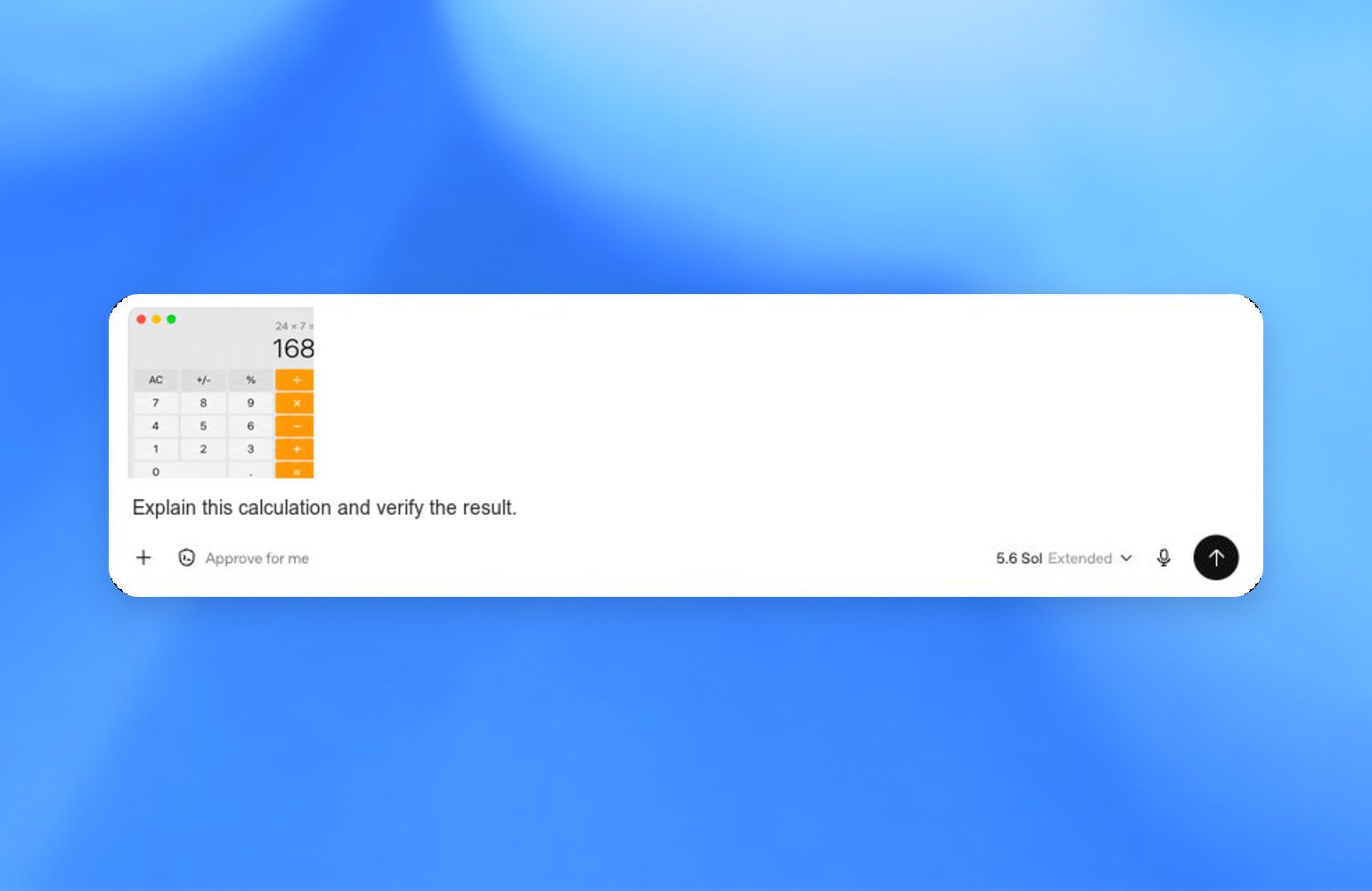
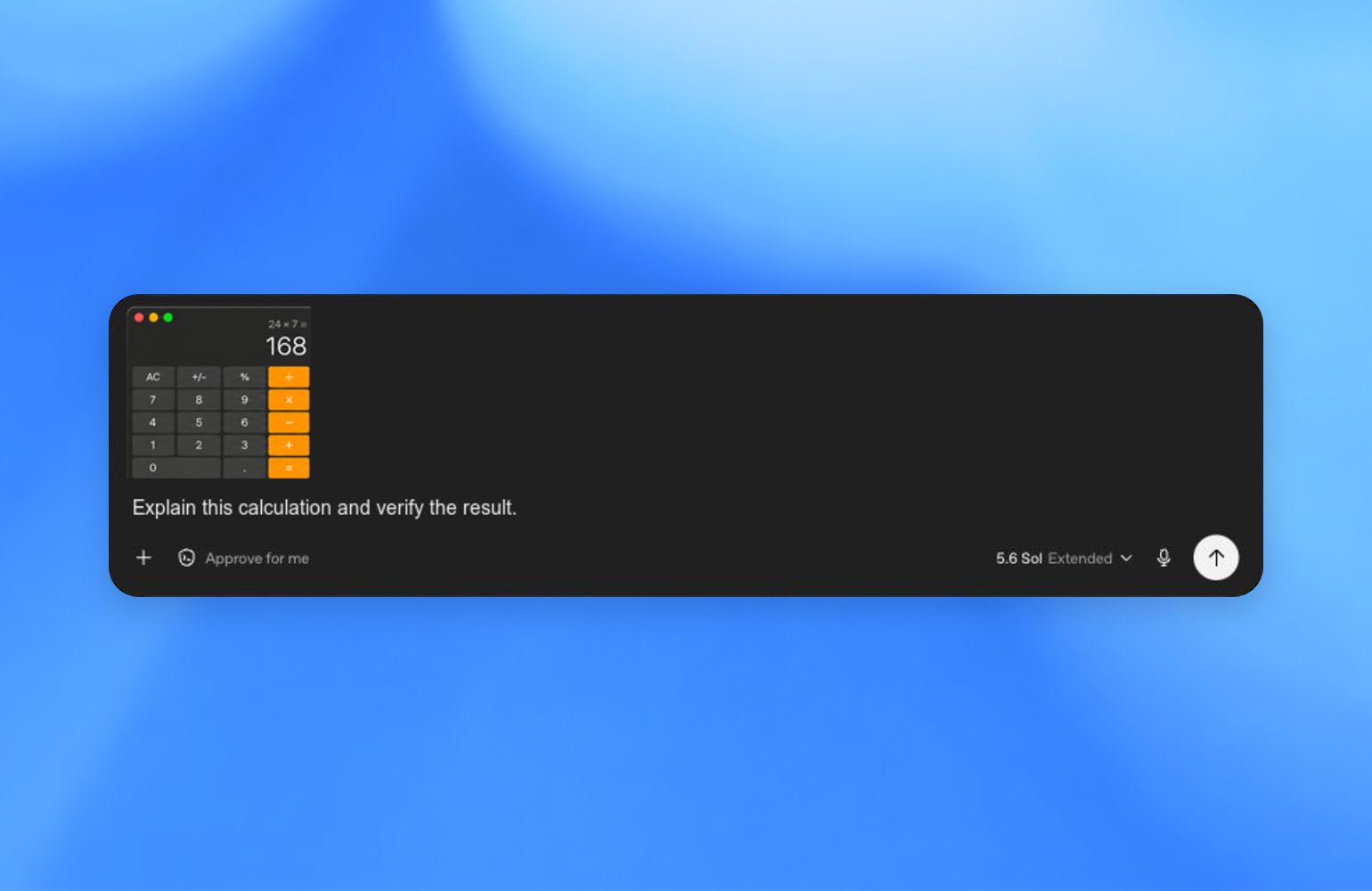 By default, ZeroTwo starts a new chat for the appshot. If you interacted with a
chat in the last 60 seconds, ZeroTwo adds the appshot to that recent
chat instead. Taking consecutive appshots adds them to the same chat.
You can change the Appshots hotkey in the app settings.
## Permissions and safety
ZeroTwo may ask for permissions before it can take appshots:
* **Screen & System Audio Recording** lets ZeroTwo capture an image of the
frontmost window.
* **Accessibility** lets ZeroTwo read available text from the frontmost window.
Taking an appshot shares the captured image and available text with ZeroTwo.
Avoid taking appshots of sensitive content unless the task requires that
content.
Review appshots the same way you would review sharing screenshots and documents
with ZeroTwo.
## Limits and troubleshooting
Appshots are available in the ZeroTwo desktop app on macOS. If you resume a chat
in the CLI that already contains an appshot, the attachment is part of the chat
history, but the CLI can't create a new appshot.
For some apps and websites, including Google Docs, Gmail, Google Sheets, and
Google Slides, ZeroTwo may receive only the visible screenshot and may not receive
the full document or off-screen text. In ZeroTwo Work or ZeroCode, ZeroTwo can use a
matching installed plugin to access the relevant app content and help with your
request.
If appshots don't work:
1. Open **System Settings > Privacy & Security**.
2. Check **Screen & System Audio Recording** and **Accessibility** for ZeroCode
Computer Use.
3. Restart the app and try again.
By default, ZeroTwo starts a new chat for the appshot. If you interacted with a
chat in the last 60 seconds, ZeroTwo adds the appshot to that recent
chat instead. Taking consecutive appshots adds them to the same chat.
You can change the Appshots hotkey in the app settings.
## Permissions and safety
ZeroTwo may ask for permissions before it can take appshots:
* **Screen & System Audio Recording** lets ZeroTwo capture an image of the
frontmost window.
* **Accessibility** lets ZeroTwo read available text from the frontmost window.
Taking an appshot shares the captured image and available text with ZeroTwo.
Avoid taking appshots of sensitive content unless the task requires that
content.
Review appshots the same way you would review sharing screenshots and documents
with ZeroTwo.
## Limits and troubleshooting
Appshots are available in the ZeroTwo desktop app on macOS. If you resume a chat
in the CLI that already contains an appshot, the attachment is part of the chat
history, but the CLI can't create a new appshot.
For some apps and websites, including Google Docs, Gmail, Google Sheets, and
Google Slides, ZeroTwo may receive only the visible screenshot and may not receive
the full document or off-screen text. In ZeroTwo Work or ZeroCode, ZeroTwo can use a
matching installed plugin to access the relevant app content and help with your
request.
If appshots don't work:
1. Open **System Settings > Privacy & Security**.
2. Check **Screen & System Audio Recording** and **Accessibility** for ZeroCode
Computer Use.
3. Restart the app and try again.